
Contents
Overview
Basic actions available in every CRUD (Create-Read-Update-Delete) editor are listed on this page. The Address editor is taken as an example.
Search Result Page
The Search Results page can be used to view and manage the existing entries.
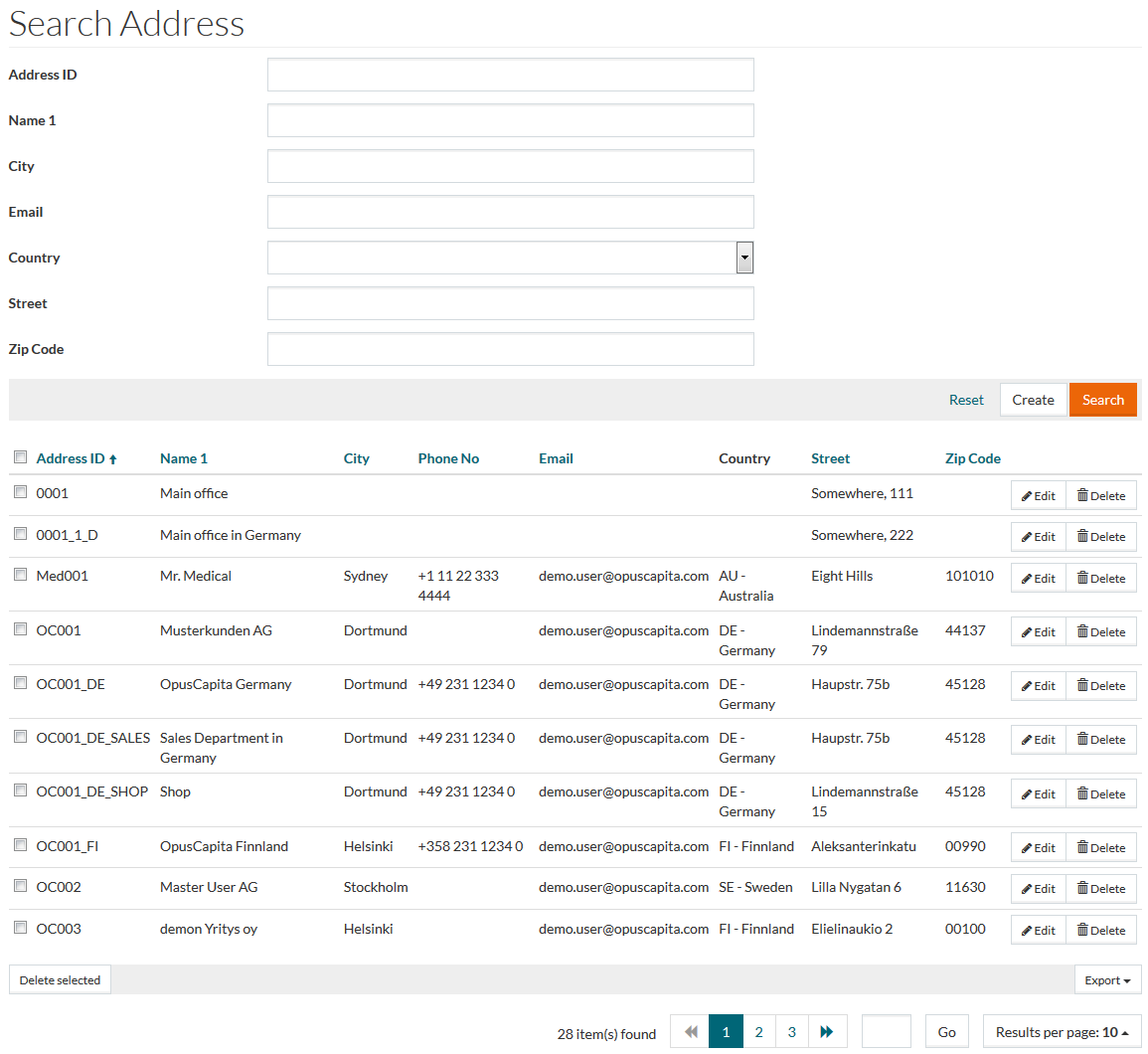
The available actions are listed below.
Search
To search for an entity or filter the search results, enter any of the listed search criteria. Use the following wildcards, if it is only a part of a phrase that you are looking for:
- * Asterisk - for multiple unknown or variable characters in the term. For example, the search term:
- car* returns "cartonnage"," caretaker", "carriage" and other words beginning with "car";
- *car returns "new car"," old car", "horsecar" and other words ending with "car";
- *cust* returns "new customer", "ABC custom", "DELL customer" and other words with the word "cust".
- ? Question mark - for a single unknown or variable character. For example, the search term:
- car? returns "cart", "carp", "card" but not carriage or caretaker;
- ?car returns "scar", but not "new car", "horsecar".
Click the Search button. The screen displays Search Results if found.
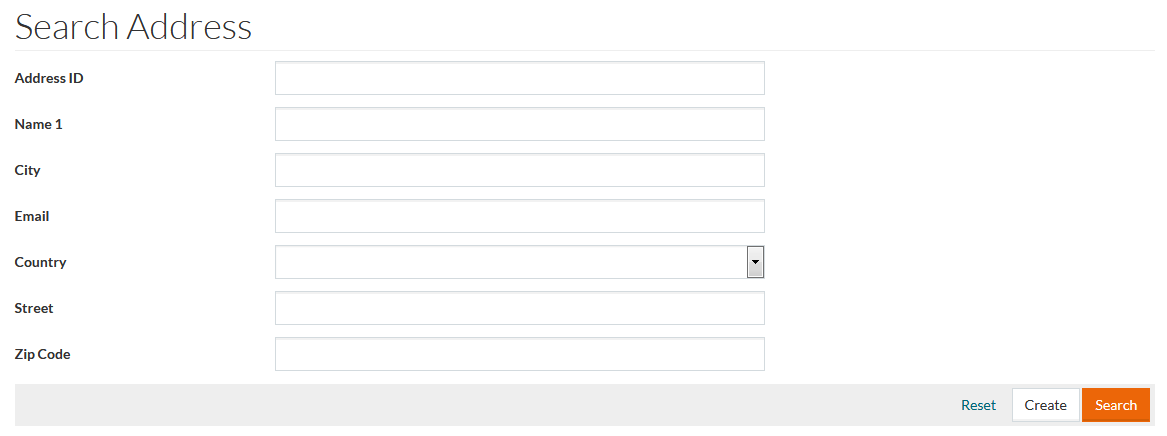
Search displays all the existing data in the results list if search parameters are blank. Click the Reset link to clear and reset search parameters.
Sort
You can sort search results by the columns in ascending ( arranged from the smallest to the largest number and alphabetically for letters) or descending ( arranged from the largest to the smallest number and in reversed alphabetical order for letters) order. Columns' names, by which search results can be sorted are highlighted in blue color. Click the appropriate column name to sort search results by it.

E.g. on the screen above, the search results are sorted by the
Address ID in the
ascending order (indicated by
 ). Sorting in descending order is indicated by the
 icon.
icon.
In some cases, sorting can be case-sensitive providing the alphabetical sorting within upper and lower case letters separately. For example, in case of ascending order for alphabetical IDs: first, IDs starting with upper-case letters are sorted, then - lower case IDs.
Export
Search results can be exported/downloaded. To do this, click the appropriate button at the bottom right side of the search results table to download and save data in the desired format:
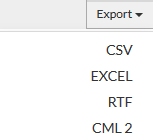
- CSV - download and save in CSV (Comma Separated Value) format.
- EXCEL- download and save in Excel format.
- RTF - download and save in RTF (Rich Text Format).
CML 2 - download and save in CML 2 (Chemical Markup Language) format.
Navigate
Use the navigation bar at the bottom of the Search Results page to navigate through the pages.

Click the appropriate page number to open it. Use the
 icon to go to the next page and the
 icon to go to the previous page of the search results list.

If there is a field to enter a page number, enter the number and click Go to navigate to a particular page of the search results.
Configure the Number of Search Results per Page
To decrease or increase the number of the search results displayed per page, select the desired option from the Results per page drop-down menu.
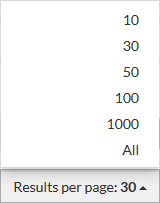
The search results grid will be updated according to the selected option.
Create
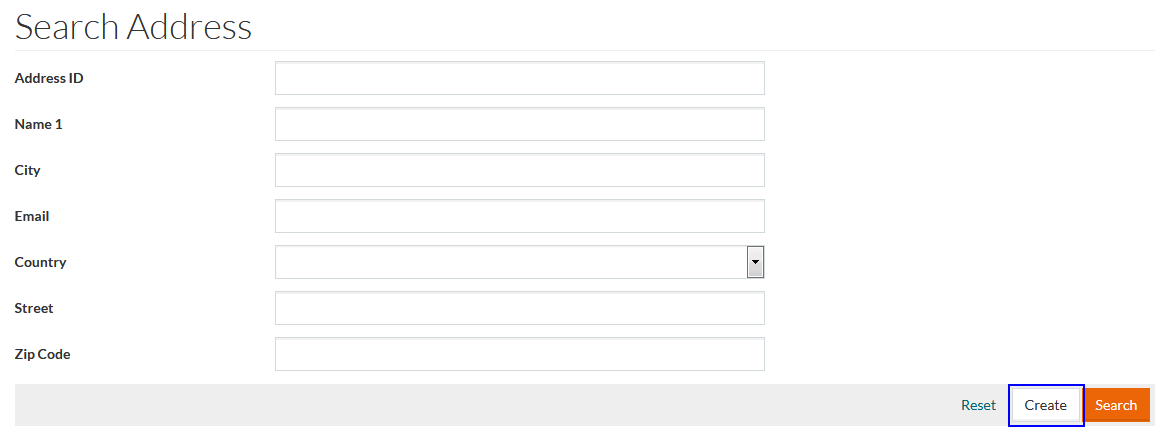
Click the Create button on the Search Result page to create a new entry. This opens the Editor page in creation mode.
Edit
Click the Edit button in the Search Result page to open the Editor page for the selected entry.

Delete
Click the Delete button in the Search Result page to delete the selected entry.

To delete several entries simultaneously from the results table, select the entries to be deleted and click Delete.
To delete all entries, select the check box displayed in the header section of the results table to select all entries listed and then click the Delete selected button.
Editor Page
The Editor page can be opened in two modes - create (upon clicking the Create button) and edit (upon clicking the Edit button) on the Search Result page.
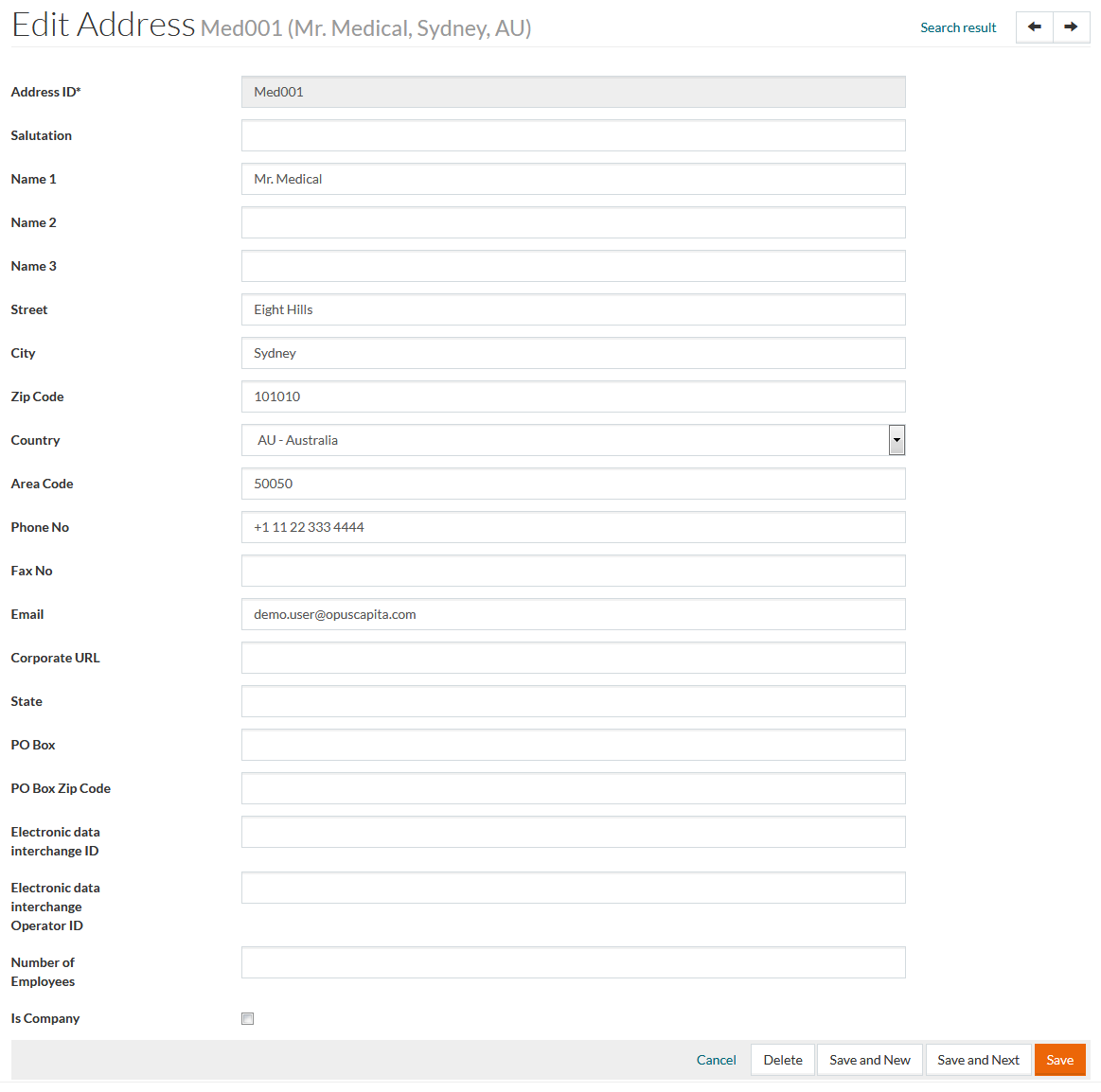
Basic actions of the Editor page are listed below.
Navigation
The navigation bar is displayed in the top right corner of the Editor.
Click the
Search Result link to be redirected to the
Search Result page. Use the
 to open the previous entry for editing, click
 to go to the next entry.
Save
Click Save on the Editor page to confirm and save the entered data.
Save and Next
Click Save and Next on the Editor page to save the current entry and proceed to editing the next one from the list.
Save and New
Click Save and New on the Editor page to save the current entry and proceed to the creation of another one.
Deletion
Click the Delete button on the bottom right button bar of the Editor page page to delete the current entry.
Cancel
Click the Cancel link on the Editor page to go back to the Search Result page.