
Access
To open and access the Change Password page, click User and Role Administration menu -> Change Password menu item of the User and Master Data application.
Functionality
Due to security reasons, the password used to log in to the application is regularly checked for its validity.
The password is encoded using
MD5 algorithm.
There are different reasons why a password may no longer be valid:
- Account has not been used for some time - this locks the account. Contact the system administrator for a new password who will also provide login validity period.
- Multiple unsuccessful login attempts - this locks the account. Contact the system administrator to find out how many unsuccessful logins are allowed.
- Password expired because it wasn't changed within the specified number of days - this does not lock the account and users can change the password themselves when directed to the Change Password page.
- Old password repeated - in this case also, users are redirected to the Change Password page. The administrator will be able to provide details on how often the same password can be repeated (e.g. a password has been used once in three times and is only allowed once in four times) and in this case, the Provisioning Manager will direct user to the Change Password page after login.
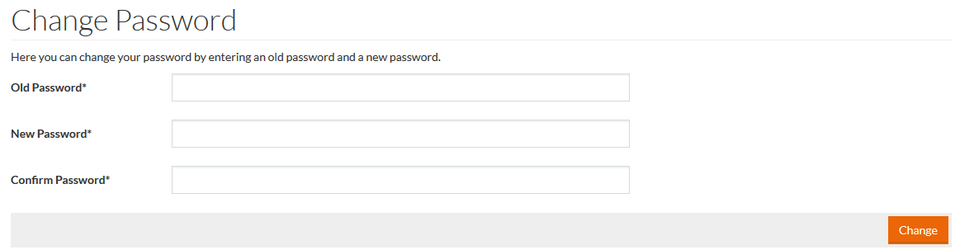
To change the current password:
- Enter an old password into the Old Password field.
- Enter a new password into the New Password field.
- Enter the new password again into the Confirm Password field to confirm the new password.
- Click the Change button to change, save and validate the new password.
It is possible to define password validation rules, which are applied when setting or changing passwords. The password configuration file, passwordConfig.groovy, can be found in /integration/userPassword/ folder in Customization Area.
The screen displays a "Password successfully updated" message, if all conditions are met.