
Access
Select System Administration from the user menu and then Manage Translations via Text Localization Tool (under the System Administration section) to get access to the functionality.
The link to the Text Localization Tool is available when the Text Localization service is installed and enabled by providing a URL to the service in opuscapita.textlocalization.service.url Configuration Attribute.
Contents
Functionality
Translations in the applications can be managed via the Text Localization Tool.
Text Localization Tool allows exporting, importing and editing translations collected from applications.
Export
The Export tab is designed to configure the export parameters for translations and to perform the export in EXCEL format.

From the drop-down link in the Applications field, select an application or applications to export translations from.
Select a Source Language for the translations.
Select Target Languages (or a language) you want to translate to.
Select Include check boxes as may be needed:
- Translated Messages: the export file will include translations which have values in the Source and Target Languages.
- Missing Messages: the export file will include translations which do not have values in the Target Languages.
- Identical Messages: the export file will include translations with identical values in Source and Target Languages.
Click Export to export translations.
Import
The Import tab is designed to configure the translations' import parameters and perform the bulk import of updated translations in EXCEL format.
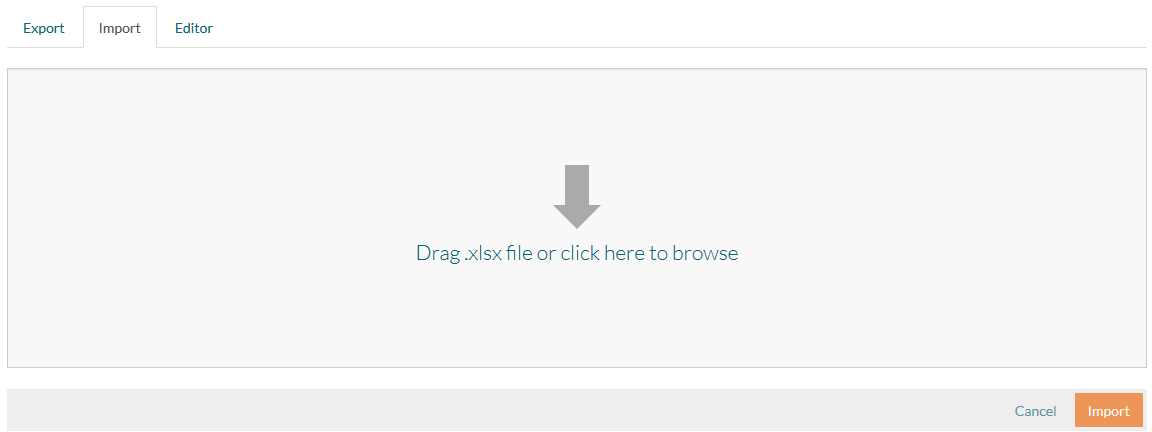
Drag the file with translations into the specified area or select it from your computer.
The import file should at least have the following columns:
- key column: includes unique keys for translations which must not be modified and stay as exported;
- source language column (with a language ID as a header): includes initial translations in the Source Language which must not be modified and stays as exported;
- target language column (with a language ID as a header): includes updated translations in the Target Language. Every target language translations should be listed in a separate column.
When the file is uploaded, it is displayed as a table for review.
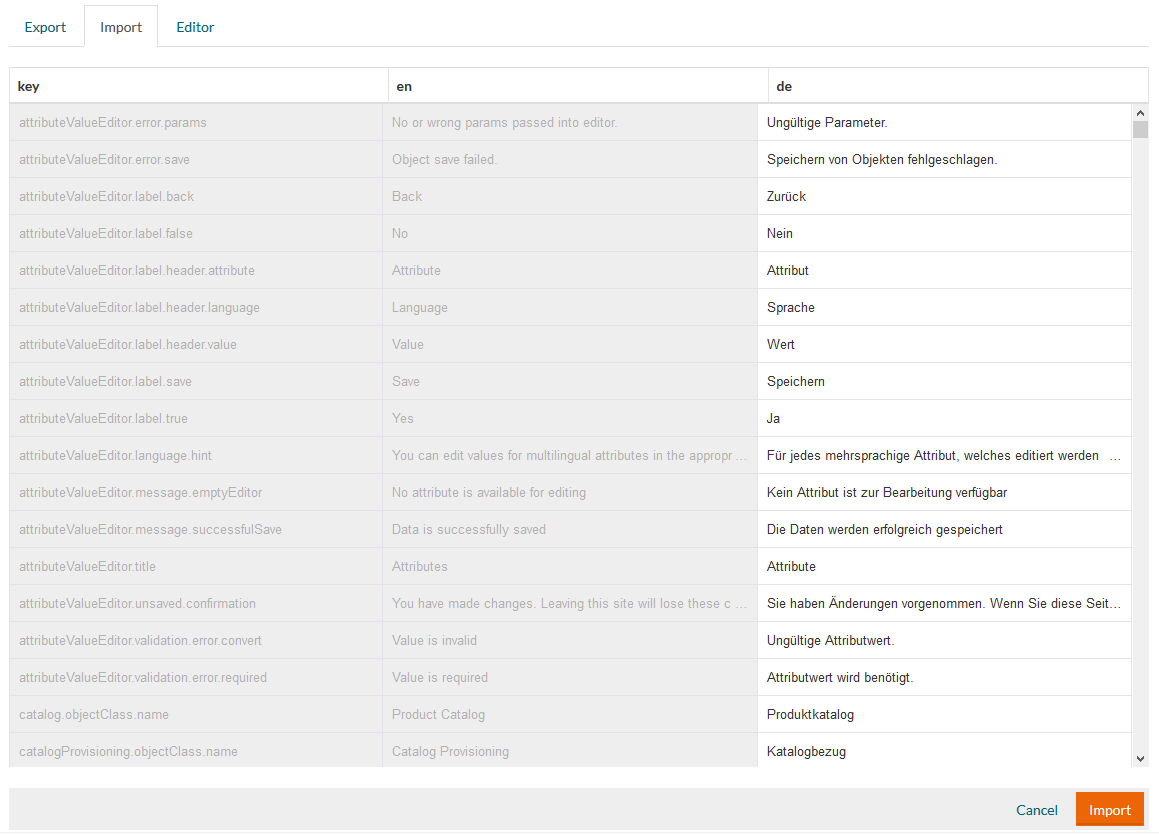
Key and source language columns are greyed out as they cannot be modified.
The width of each column can be adjusted by moving the column separators.
Translations in the target language columns can be easily modified:
- click on the cell with the translation
- type the correct translation
Click Import to import the file and its modifications, if any.
If the target language column has any empty values, you will be asked to confirm the following actions:
- import of the empty values as empty strings: the imported empty value will overwrite the existing value
- ignore such empty values during the import: the imported empty value in the import file will not affect the existing value in the application
Editor
The Editor tab allows editing the existing translations without the need to export and import them.
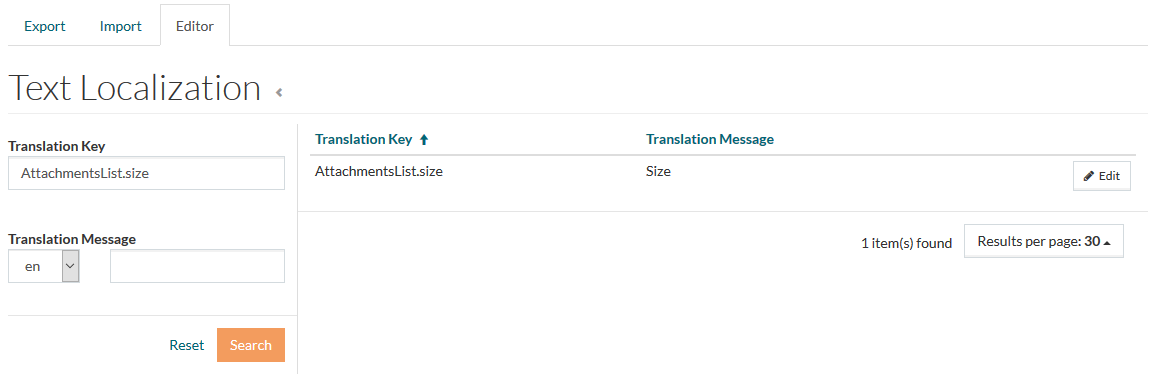
Search by Translation Key or Translation Message (value) in the selected language.
Click Edit to open the Editor and update translation values.
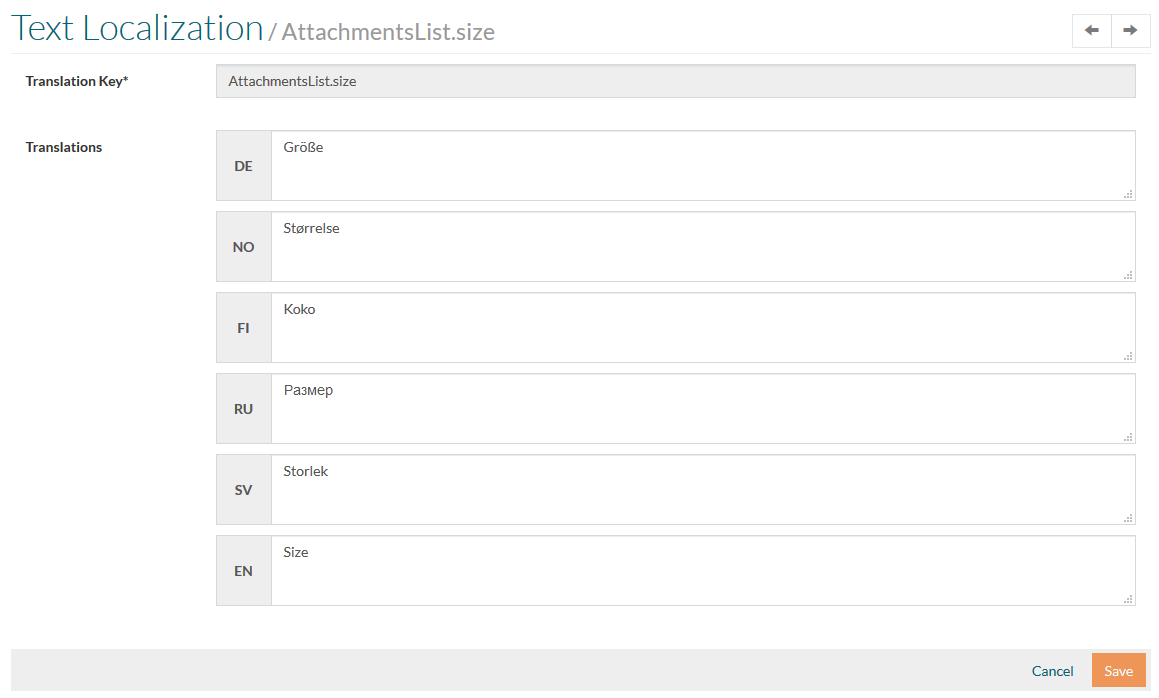
Update the Translations and click Save to save the updates.