
Access
To open the Buying Organizations search page, select Master Data from the main menu and then Buying Organizations (in the Customer/Supplier section).
Contents
Functionality
Users can specify and limit Customer access to Catalogs/Contracts through the Buying Organizations options. See the Basic Actions page for more info on standard actions (search, sort, edit, delete etc.).
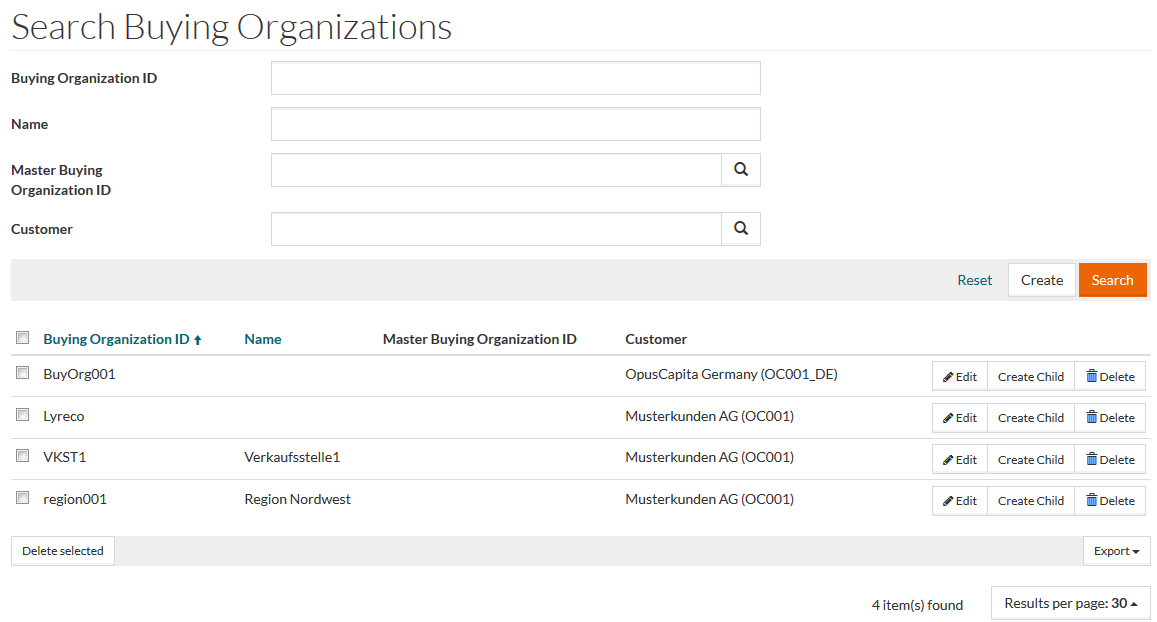
Create Buying Organizations
To create or add a new Buying Organization, click the Create button to open the General tab of the editor.
General Tab
Enter data for the
Buying Organization ID and select
Customer using
 . It is mandatory to enter data for both these fields.
Customer field is pre-filled in case the user is under customer assignment.
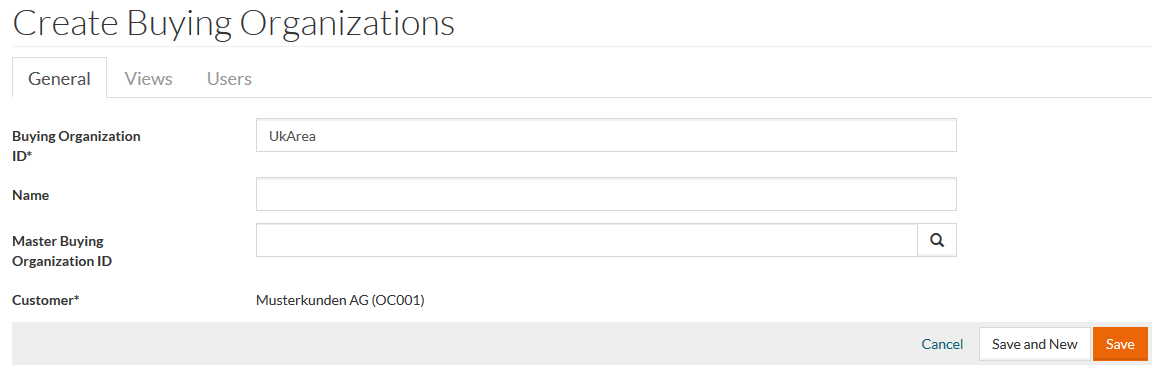
Click Save to save the newly created item. This enables the Views and Users tabs of the editor.
Click Cancel to cancel the creation.
Click Search result at the top right corner of the screen to return to the search page, or to navigate through the results table.
Views Tab
Click the Views tab of the editor to view or add Customer Views. It is possible to see the views assigned to the selected Buying Organization and what is in the view. Only views assigned to the Buying Organization can be viewed on this page. In order to do that, this should be predefined in Customer Views in PIM to be able to view or add it. See also Buying Organizations and Customer Views in PIM.
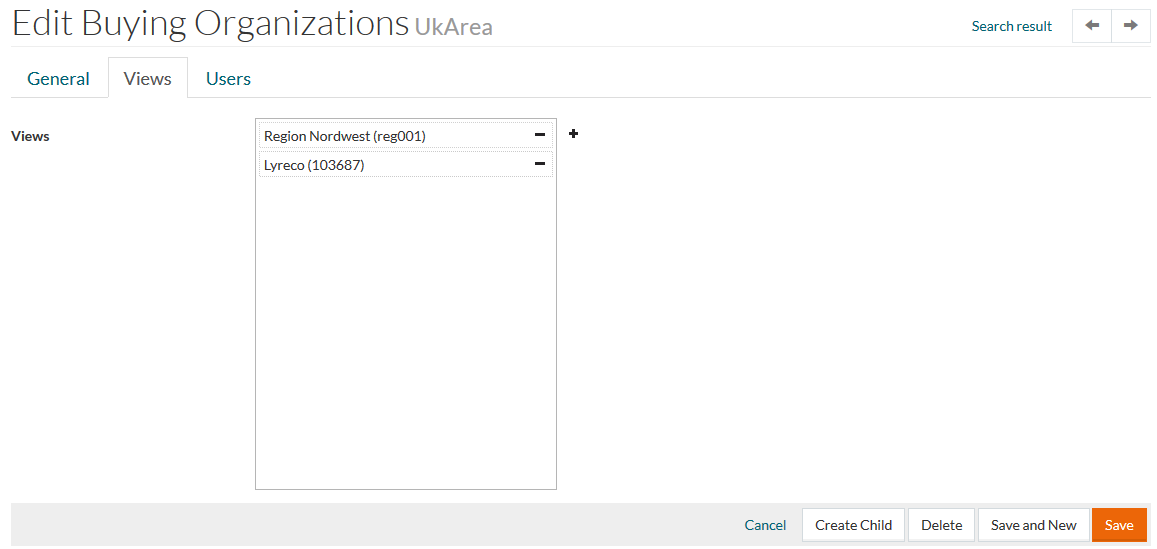
Click
 to select and add existing Customer View..
Click
 to delete a view association entry.
Click
Save to save the data.
Users Tab
Click the Users tab of the editor to view or add users to the buying organization.
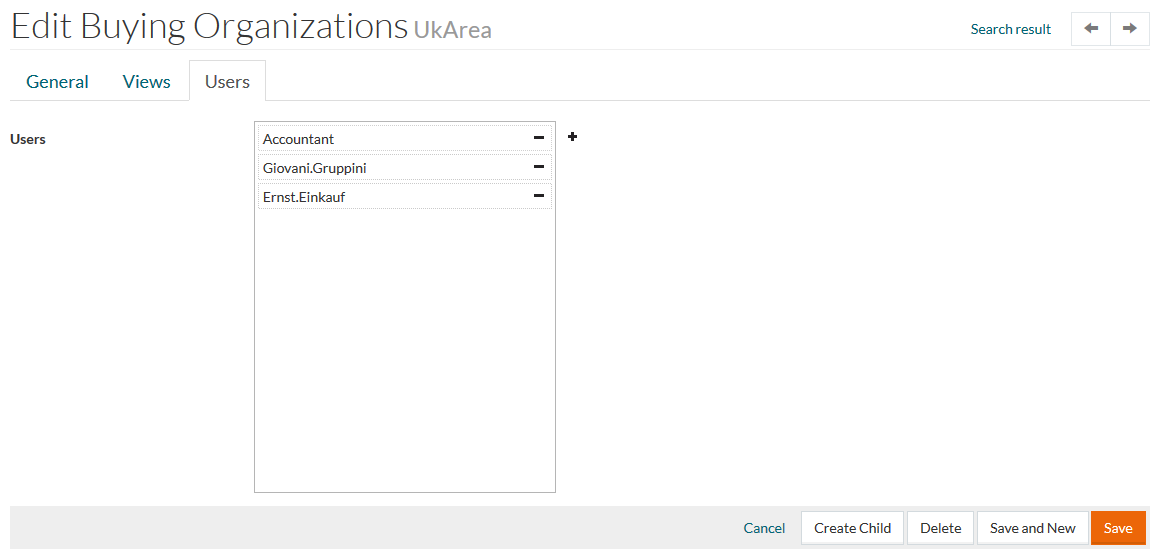
Click
to open Search for Users page with the list of available users, select the appropriate and add them to the Buying Organization.
Click
to delete the user from the Buying Organization.
On completion, click Save and New to save and create a new view association, Save to save and close after editing an existing view association or Cancel to return to the search page. Click Search result at upper-right corner of the screen to return to the search page, or to navigate through the results table.
Create child
Click the Create Child button to create a sub-Organization. Regular Buying Organization creation page will be opened with predefined Master Buying Organization.