Access
To access Search Catalog page, select Master Data from the main menu and then Catalogs (in the Catalogs section).
Contents
Overview
The Catalogs functionality allows to add, modify and delete catalogs from the Work Area. The status of catalogs is important in different areas, hence can be freely defined. It also makes it possible to track the process of the catalog.
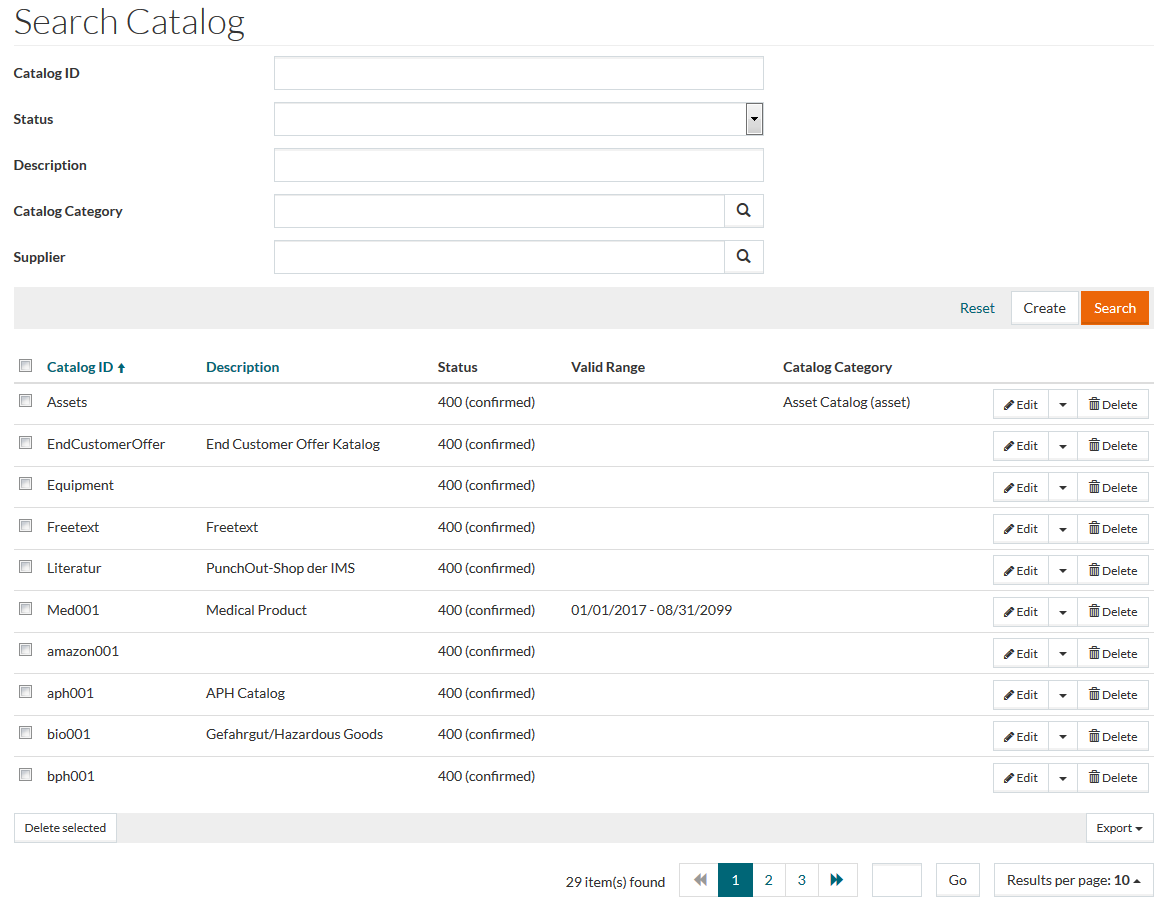
The Product Catalog Editor is used to add new catalogs, search for the existing ones, modify and delete them.
See the Basic Actions page for more info on standard actions (search, sort, edit, delete, etc.).
Create Catalog
Click the Create button to open Product Catalog Editor and add a new catalog. The General tab will be displayed.
General
Fill in Product Catalog ID and Status (these parameters are required) and any other necessary data.
Catalog ID can only contain alphanumeric characters (letters A-Z, numbers 0-9), hyphens ( - ) and underscores ( _ ).
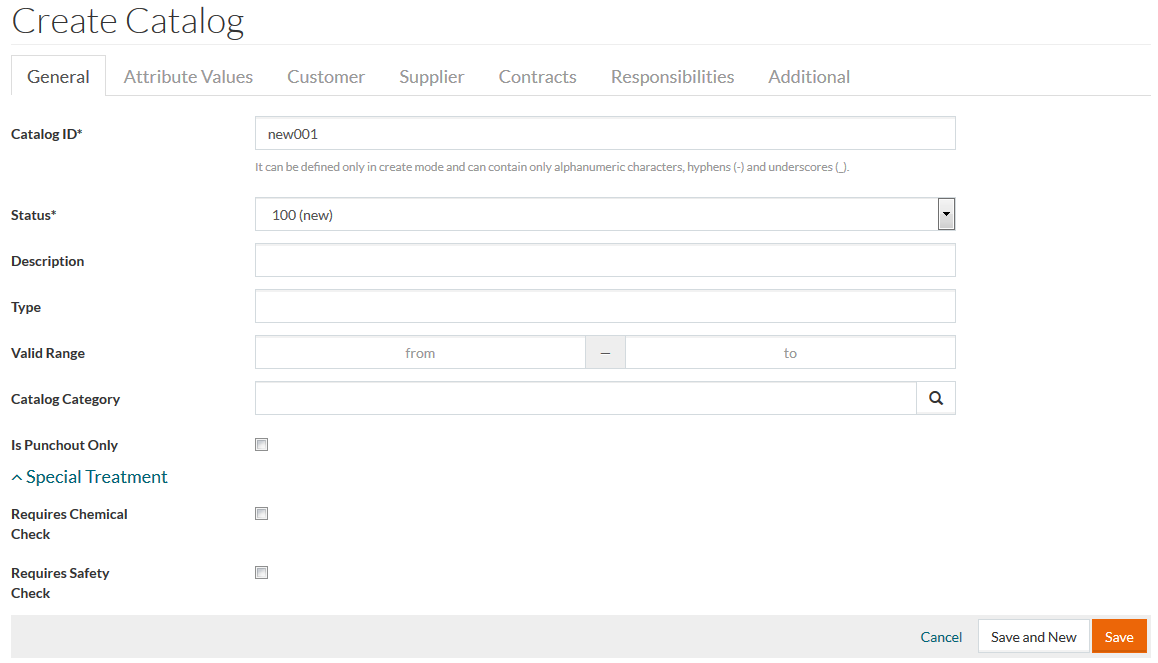
Fill in the initial data and click Save to continue editing. The system displays the message confirming the addition of a new product catalog, and additional tabs are activated for editing.
The following tabs are available for editing now:
Attribute Values
If there are attribute values assigned to the catalog domain, they will be available for editing on the Attribute Values tab.
Select the desired language from the drop-down menu (for the multi-language attributes) and enter the value into the appropriate field. Click Save to confirm the changes.
To get a list of the attribute value's revisions, click the Revisions link, which appears after saving the attribute value.
Customer
In the Customer tab of the Product Catalog Editor, it is possible to specify customers, who will use the catalog.
Click
 to add a new customer.
Enter the customer details and select it from the result list. Click the Select to confirm and add the customer.
Click
 to edit a customer entry from the list.
Click
 to delete a customer entry from the list.
Supplier
Click the Supplier tab to view, add or edit supplier details.
Click the search icon to search for a supplier. Click the Save button to confirm the changes.
Contracts
Contracts assignments can be created and managed in the Contracts tab of the Product Catalog Editor page.
Click the Create button at the bottom of the section to add a new contract assignment.
Fill in the required parameters:
- Contract
- Catalog
- Visibility
- Exclude - all the products from current catalog will be invisible;
- Include - all the products from current catalog will be visible;
- No impact.
Other parameters are optional:
- Discount
- Timeframe
- Cost
- Currency
- Amount
- Unit Of Measure
Click Save to save the new product catalog entry.
On returning to the Product Catalog Editor, the newly added contract will be displayed under the Contracts section of the Product Catalog editor.
Use the Open Contract Editor button to open the Contract Editor to manage the existing contracts and add new ones. Click the Create button to add a new catalog. Refer to Contracts for more info.
Click Edit to edit, click Delete to delete contracts assignments.
Responsibilities
In the Responsibilities tab of the Product Catalog Editor, it is possible to specify User/Role/Group-specific responsibilities.
Click the Create button to add responsibilities.
Fill in Authority, Type and Level fields, which are mandatory.
The Deny check box controls if all actions of this responsibility level are granted or not. " Deny" of a level will deny all actions granted by this level.
Click Save to save the newly created responsibility.
Additional
Click the Additional tab to include any additional information about languages.
Click
to add/insert the entry fields for
Language parameters. Click
to delete an entry.
Click Save to save and Cancel to cancel.
Duplicate
Select the Duplicate option from the Edit drop-down menu or click Duplicate on the editor's page to create a copy of the existing catalog. Enter a unique Catalog ID for the newly created catalog and click Save to save the duplicated catalog.
Revisions
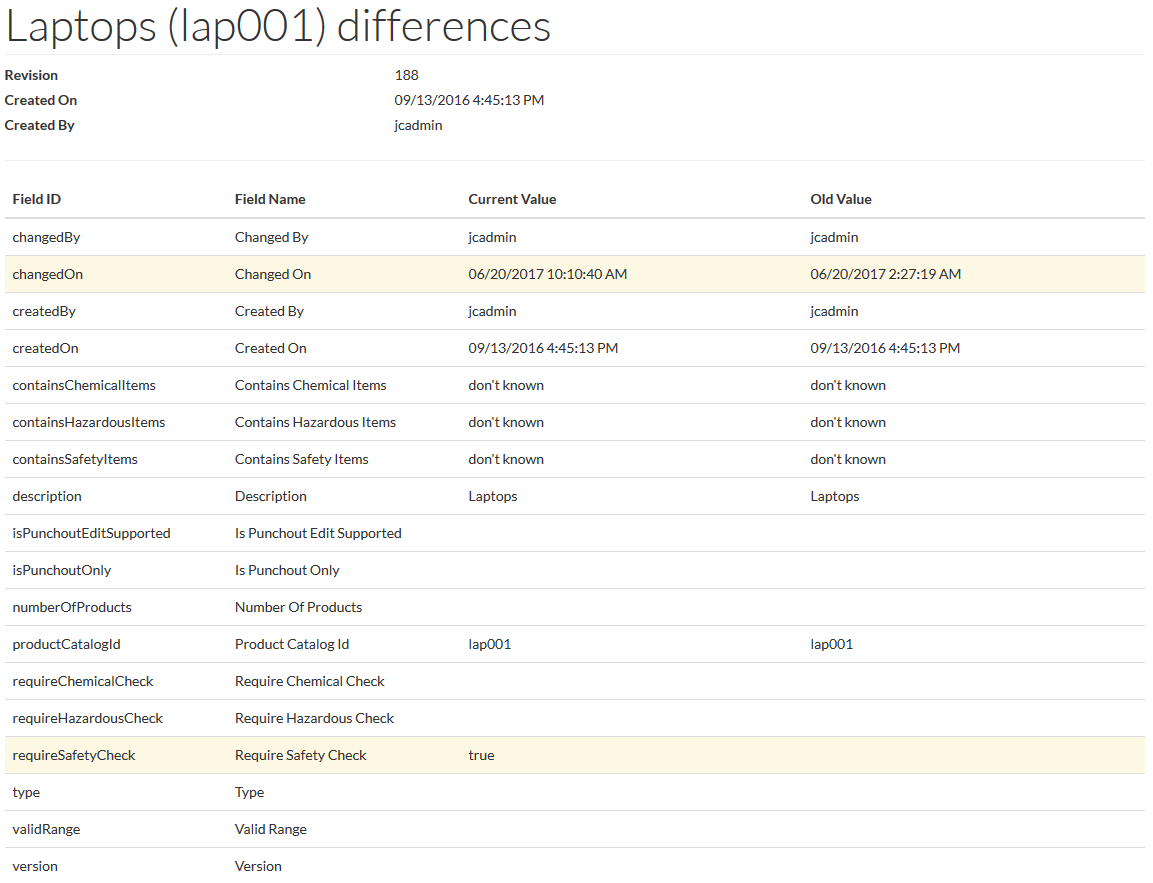
To get a list of the catalog's revisions, select the Revisions option from the Edit drop-down menu on the Search Result Page, or click the Revisions button on the Edit Catalog Page.
Click the Changes link to see the revision details: