
Access
To manage Classifications, select Master Data from the main menu and Classifications (in the Classification section).
Contents
Overview
A classification is a hierarchical system for grouping materials, products and services according to a logical structure with a level detail that corresponds to the product-specific properties that can be described using norm-conforming properties. Standard classification systems are for example eCl@ss and UNSPSC.
Example: UNSPSC Classification
What is UNSPSC? The UN/SPSC categorization scheme is a global standard for the classification of products and covers the broadest collection of industries and commodities available today. It was developed through a merger of the United Nation's Common Coding System (UNCCS) and Dun & Bradstreet's Standard Products and Services Codes (SPSC).
Sample UNSPSC Categorization Coding for Square Nuts: 31161730
31 Manufacturing Components and Supplies
3116 Hardware
311617 Nuts
31161730 Square Nuts
Four (4) levels of UNSPSC categorization, consisting of eight (8) digits. Each two digit segment represents a deeper descriptive element driving down to the specific product. Overall, UN/SPSC offers a ten-digit, five-level logical hierarchy for organizing commodities and services. Each level in the hierarchy has its own unique number.
- XX Segment - the logical aggregation of families for analytical purposes
- XX Family - a commonly recognized Group of inter-related commodity categories
- XX Class - a Group of commodities sharing common characteristics
- XX Commodity - a Group of substitutable products or services
Why do we need classification: to ensure a common understanding and a general treatment of product data, classification and dictionary systems are used to define their essential technical parameters and/or to categorize the products. As a result of this there is a growing number of classification or dictionary systems on the market. If the systems used by sender and recipient of data are different, it is necessary to transform one system into the other. This is done by a classification mapping.
The exchange of product data is an essential part of the electronic business: product selection, business transactions, maintenance procedures etc. rely on the availability of data about products. Problems with mismatched classification systems result in non-functional catalogs where shop searching produces no results. A classification mapping allows you to adapt your catalog to the required system.
Functionality
The Classification Editor can be used to modify/add/delete classifications. Modify existing classes to the latest versions of the classifications and unless this is done [Modify & Add] the identified class will not be recognized on import and will fail validation.
See the Basic Actions page for more info on standard actions (search, sort, edit, delete etc.).
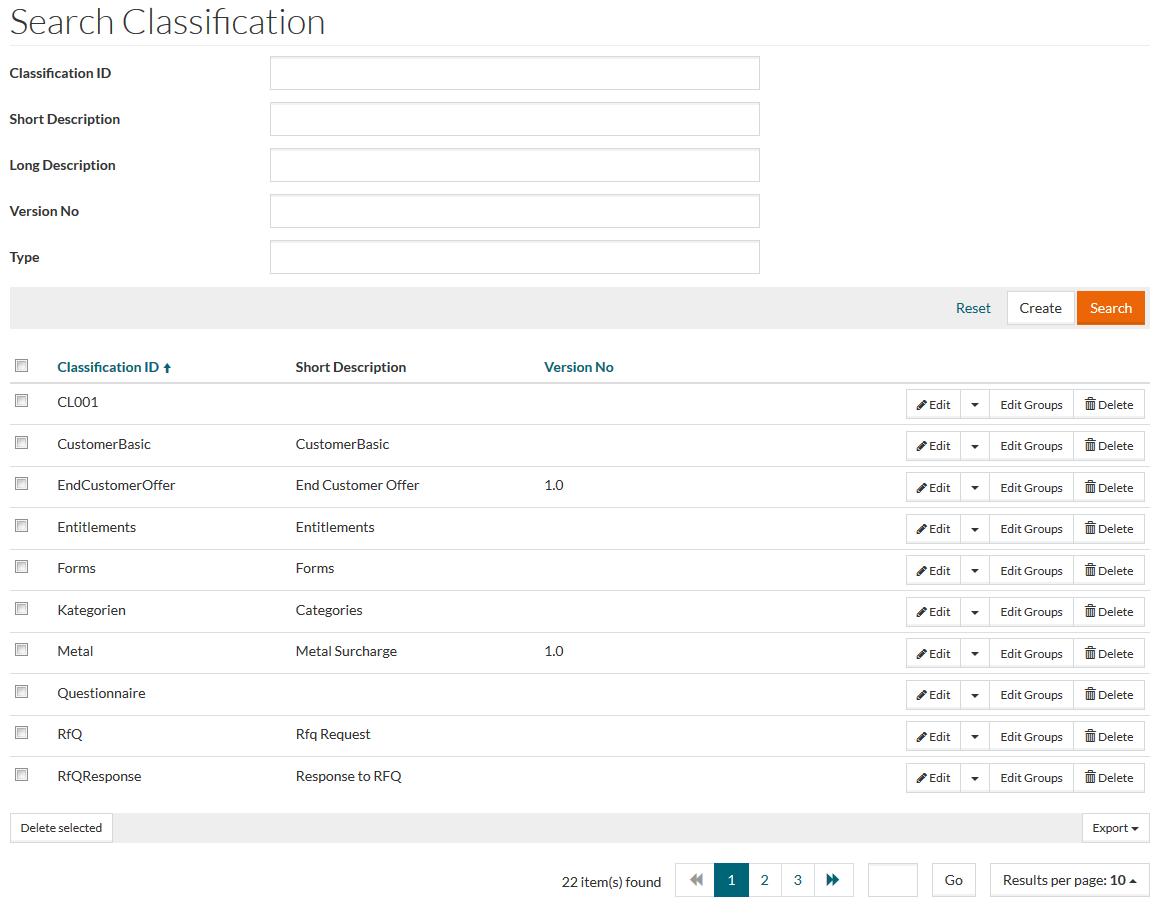
Add Classification
To add a new classification, click the Create button, the Create Classification will be displayed.
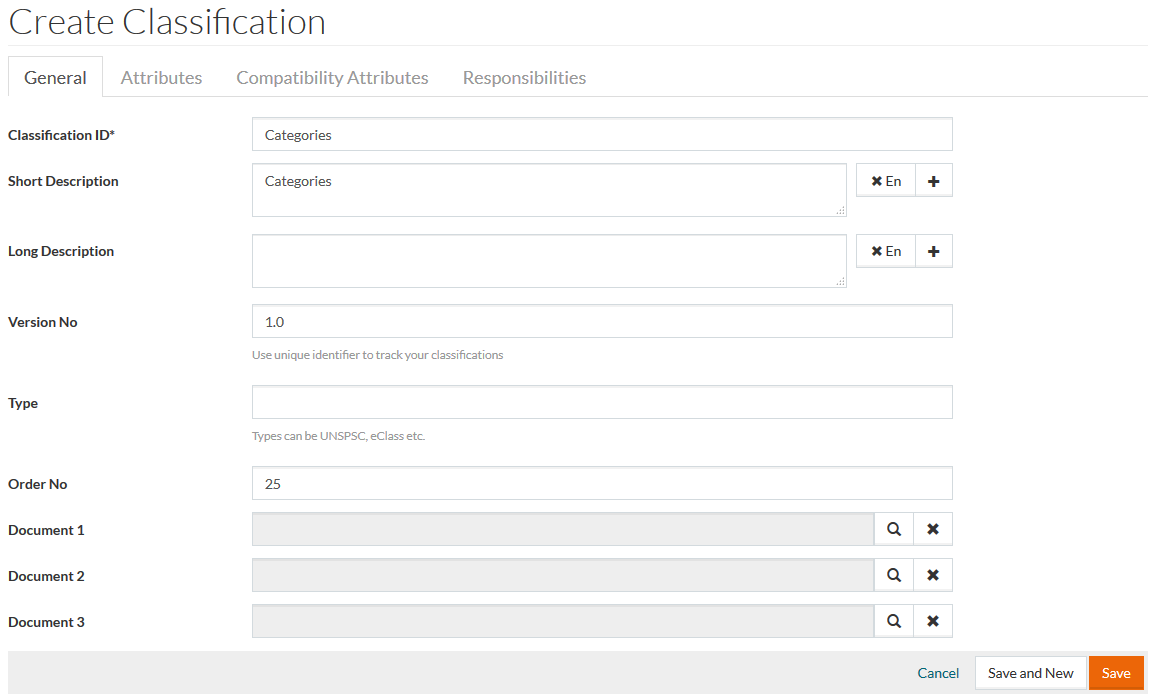
General Tab
On the
General tab enter the
Classification ID (mandatory field),
Short Description,
Long Description - click
 to add descriptions in an additional language and
 to delete them,
Version No (unique number to track classifications),
Type of classification (like UNSPSC or eClass) and the
Order No.
to delete them,
Version No (unique number to track classifications),
Type of classification (like UNSPSC or eClass) and the
Order No.
It is possible to assign Documents to a classification. The subsystem accepts file formats that can be viewed by an Internet browser, including PDF (Adobe Acrobat) file format. These files may be product pictures, line drawings, MSDS, specifications or other clarifying information of use to the buyer.
Some of the most commonly used formats are:
- JPG (picture)
- GIF (picture)
- PDF (Adobe Acrobat)
Once all the required data has been entered click the Save button to save the newly added classification, Save and New to save and proceed with creating a new classification, Save and Next to save and edit the next classification or Cancel to cancel.
After saving the newly created classification the other tabs: Attributes, Compatibility Attributes and Responsibilities become available.
Attributes Tab
On the
Attributes tab, click
to add new attribute to the classification. The newly added attributes will be available in the attributes editor accessible on the
Edit Classification Group page.
Click
 to remove the selected attribute.
Compatibility Attributes Tab
On the
Compatibility Attributes tab, click
to add compatibility attributes to the classification. Click
to remove the selected compatibility attribute.
Responsibilities Tab
On the Responsibilities tab you can add responsibilities to the classification.
Click the Create button to create a new responsibility. Fill in the necessary fields (Authority, Type and Level are mandatory).
Click Save to save the Responsibility.
Click the Refresh button on the Reponsibility tab to refresh the page.
Edit Classification Groups
Click the Edit Groups button to open the editor and switch to the edit mode to edit classification groups.
Enter the Classification Group ID. Select Status for the classification from the drop down menu. Enter Short and Long Descriptions for the classification in multiple languages if required. Add the required documents by entering the path to them into the appropriate field.
The Order No. determines the order of the classification groups withing the classification in the classification tree and on the Product Details page in OPC.
It is required to fill in the Order Number for the classification group with the unique sequence of characters in the same level of hierarchy. In case the Order Number is empty, the Classification will not be shown in OPC Browse Categories section.
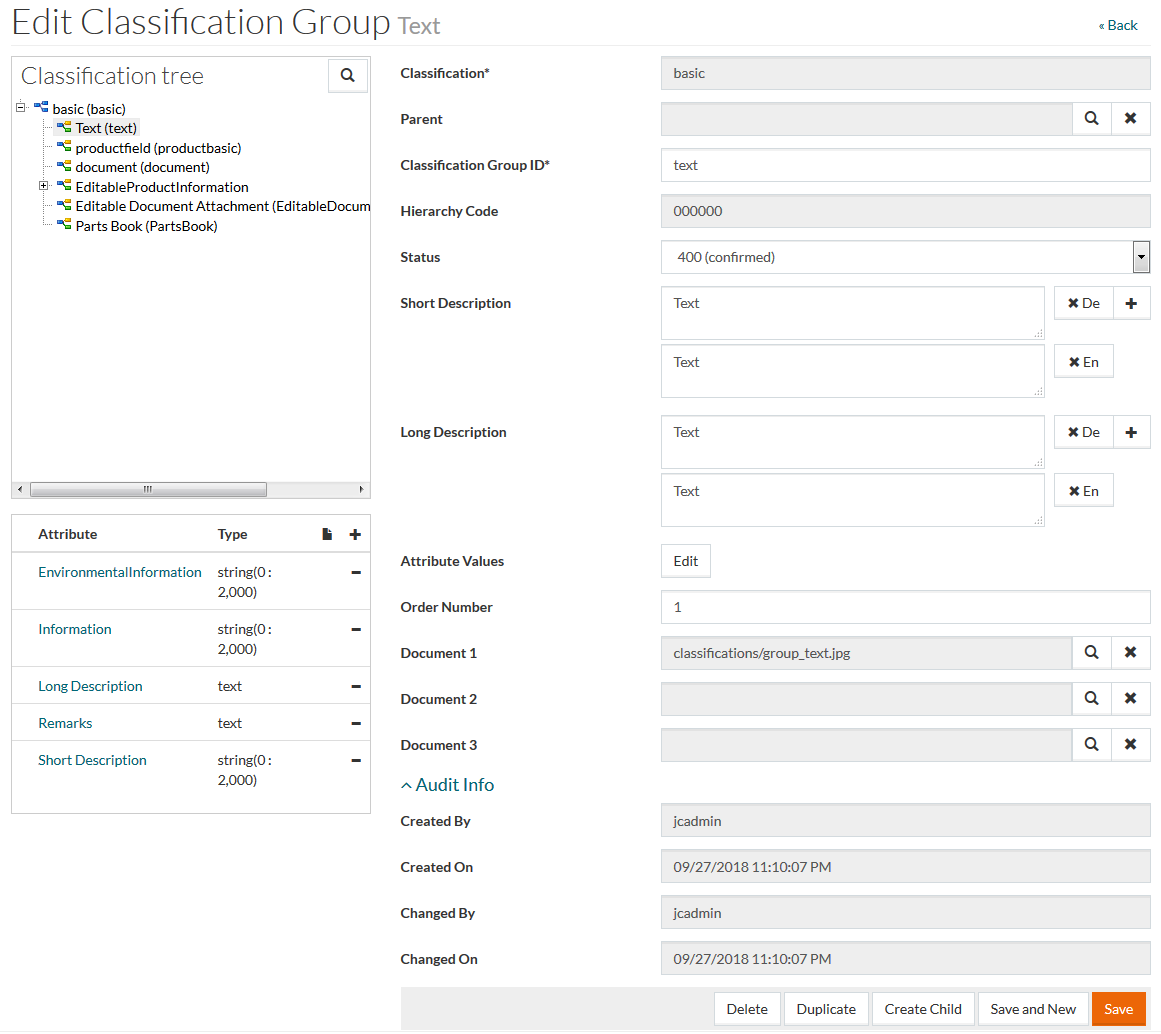
Click the Save button to save the changes.
To create a child category under the selected classification, click the Create Child button, enter the relevant details and click Save.
To edit classification group attribute values, click the Edit button by the Attribute Values.
The classification group attributes are those defined for this classification on the Attributes tab in the Classification Editor.
Enter the values for the classification group attributes and click Save.
To edit the attributes assigned to the classification, click the name of the attribute in the section located in the bottom left corner of the Classification Group editor. The Attribute editor opens.
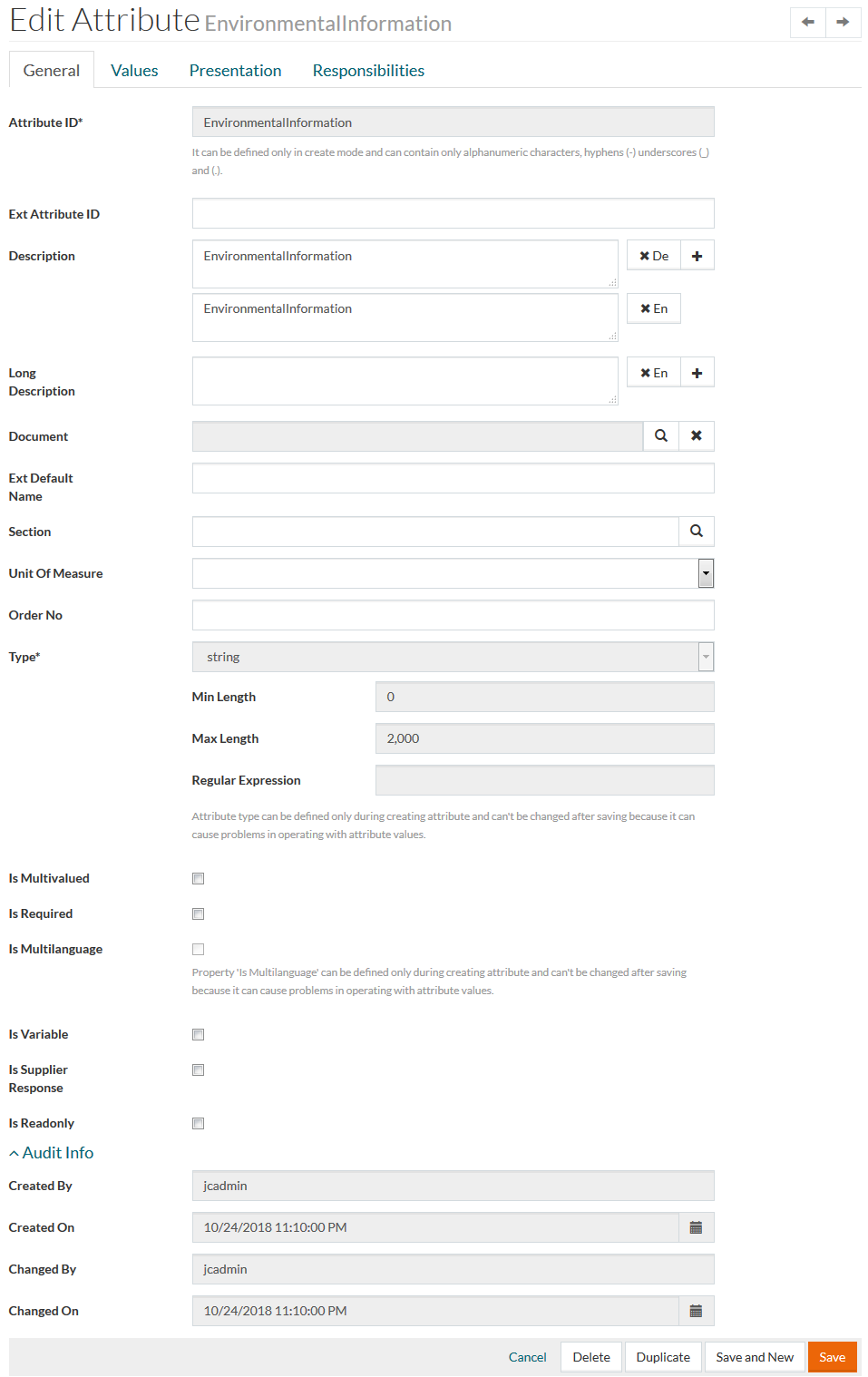
Make the desired changes and click Save.
To assign attributes to a particular classification group select a group in the tree and click
in the upper-right corner of the attributes list.
This opens the attributes search browser.
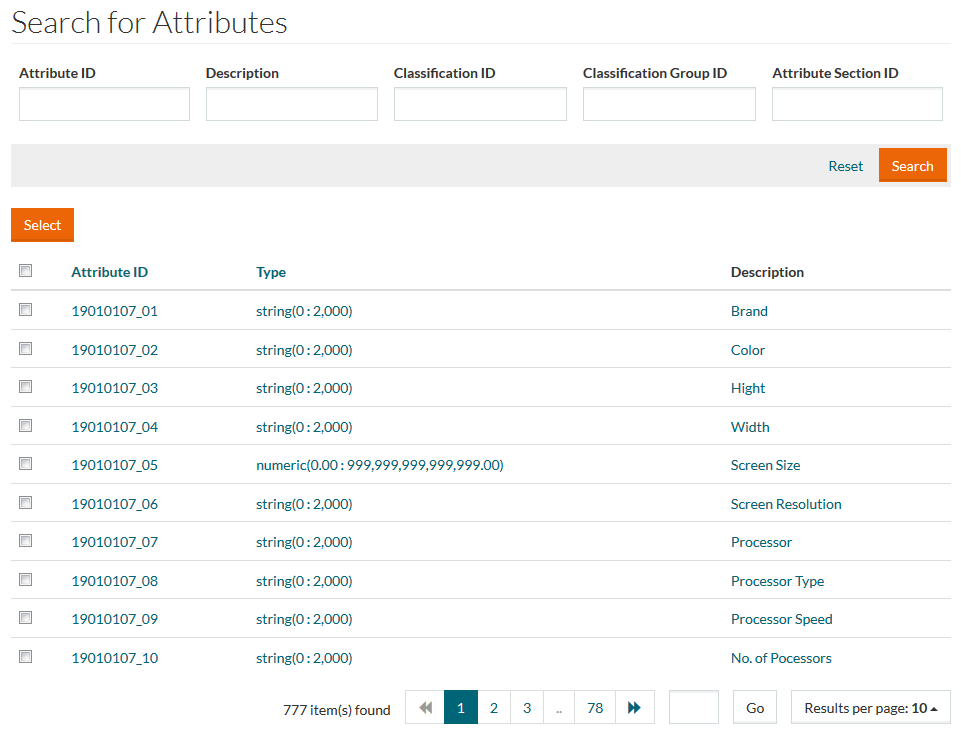
Click
 in the upper-right corner of the attributes list to create a new attribute.
Click
to remove the selected attribute.
When an attribute is assigned to a classification group it will implicitly be assigned to all subgroups of the classification group recursively. The same logic is applied for deletion of attribute assignments in a classification group. In the attributes list of the classification group, a special icon will be displayed if the attribute is also assigned to the parent group.
To delete a classification group from the classification, click the Delete button.
Duplicate Classification or Classification Group
Select the Duplicate option from the Edit drop-down list to create a copy of the classification or click the Duplicate button on the Classification Group Editor page to create a copy of an existing classification group. Enter a unique Classification ID/Classification Group ID for the newly created classification and click Save to save the duplicated entry.