
Access
To access the Entitlement Editor, select Master Data from the main menu and then Entitlements (in the Basic Data section).
Contents
Overview
Entitlement allows/restricts the visibility of Contracts/Messages/Dynamic Forms (Classification Groups) for Users (and, in case of messages, for some domain Objects too) in OPC.
Currently there are three types of Entitlements by Referer Type:
- Contract Entitlements
- HTML Content Entitlements
- Classification Groups Entitlements
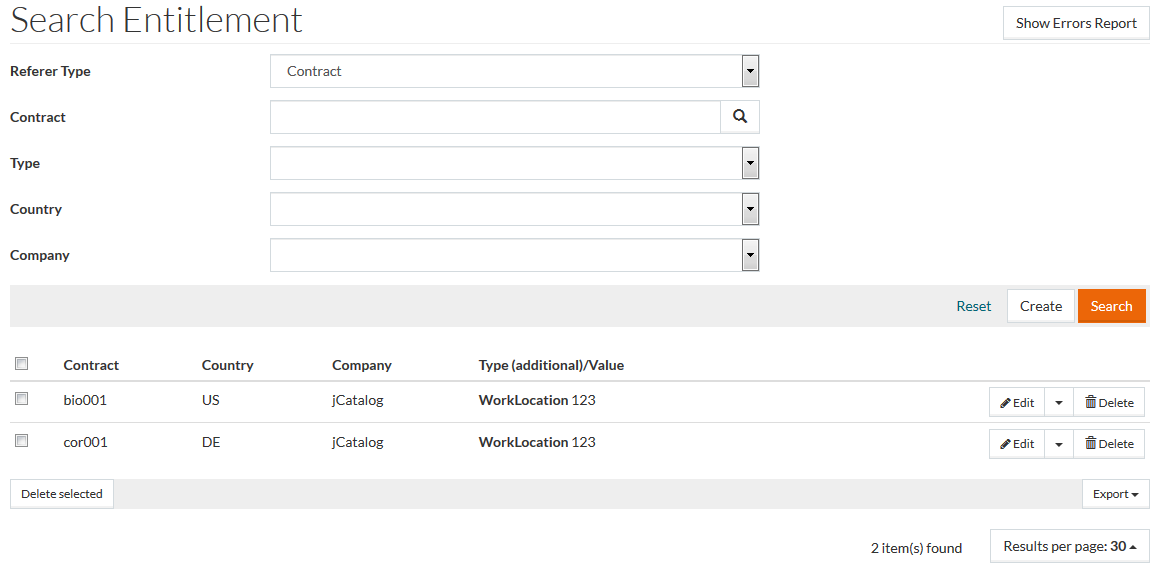
You can manage the values, predefined in Company, Country and Purchase Type drop-down lists via the Entitlement Types Editor.
Search Entitlements
Search for an Entitlement using any of the search parameters listed. To change the default Referer Type, select from the drop-down list to specify whether the Entitlement is relevant to Contracts, HTML Content or Classification Group. Search results will change depending on the selection.
Enter details for the parameters based upon the
Referer Type selected. Use the
 icon to help search and select the required details from the database or drop-down lists, if applicable, for every instance.
Click the Search button to initiate the search and display search results. Search results will display all available Entitlements if search parameters are blank. Use the Reset link to clear and reset search parameters.
Entitlements According to the Referer Type
Contract
The list of Contracts available to a requester is managed via Contract Entitlements. The Entitlement feature is intended to support dynamic contract view management by allowing an external system to pass Contract access Attribute Values into the OPC via the OCI standard.
For details of contracts with missing or incorrect Entitlement data, refer to the Entitlement Report. To view this report, use the Show Errors Report button located in the upper-right corner on the Entitlements search page.
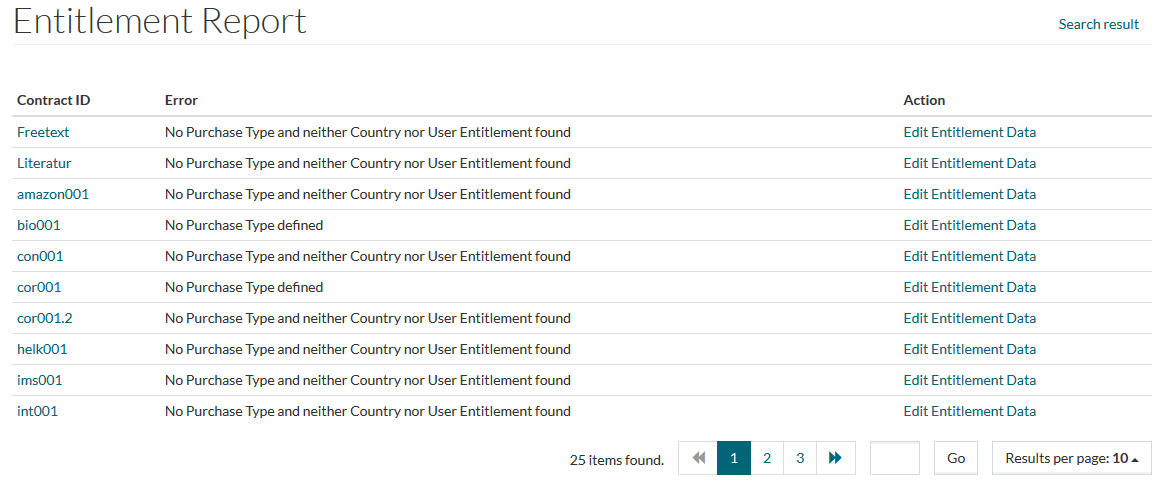
Click Contract ID to open the Contract Editor for the relevant contract, click Edit Entitlement Data link to create/edit the relevant Entitlement of Referer Type - Contract.
To add an Entitlement for the Referer Type - Contract from the search page, select the Referer Type and click the Create button. This opens the Entitlement editor for the Entitlement with Referer Type - Contract. Different fields are rendered depending on the Type selected.
There are six types for the Contact Referer Type:
- UserID
- InitiatorID
- WorkLocation
- BusinessUnit
- CostCenter
- PurchaseType
Country, which is a required field, is not rendered for types UserID and PurchaseType.
Complete the form and click Save to save the created Entitlement, Save and New to save the entitlement and start a new one or Cancel to return to the search page.
HTML Content - Objects Mode
This option is applicable when messages need to be published/displayed on the OPC Home Page.
Select Referer Type - HTML Content and click the Create button. This opens the Entitlement editor for the Entitlement with Referer Type HTML Content in Objects mode.
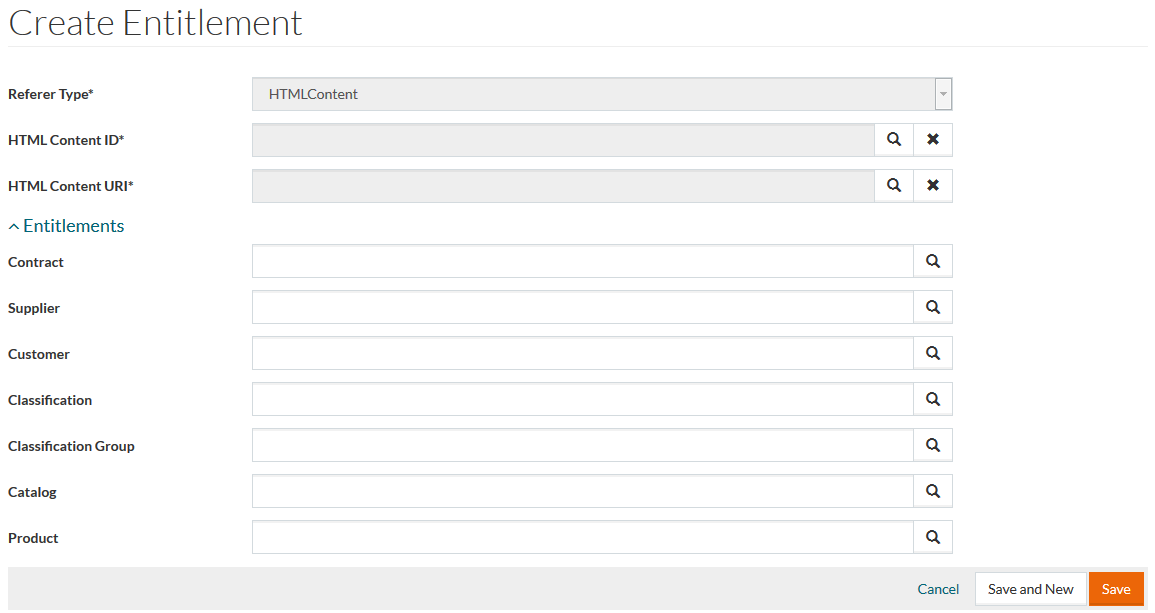
Enter details for the mandatory
HTML Content ID field or use the
icon to open the Weecem Content search window. Click on the appropriate
HTML Content ID to select it. Apart from the HTML Content ID, the Parent and Child Alias URI columns (if assigned) are also displayed. Fill in the
HTML Content URI field which is also mandatory.
If required, enter details for the other parameters -
Contract,
Supplier,
Customer etc. or use
to select it from the database.
Lastly, click Save to save the created Entitlement, Save and New to save the entitlement and start a new one or Cancel to cancel and return to the search page. Once the Entitlements are assigned, the message will be published and displayed on the Message Board of the OPC Home Page.
HTML Content - Users Mode
HTML Content Referer type is available when OPC application is installed.
Select Referer Type - HTML Content, switch to Users Mode and click the Create button. This opens the Entitlement editor for the Entitlement with Referer Type HTML Content in Users mode.
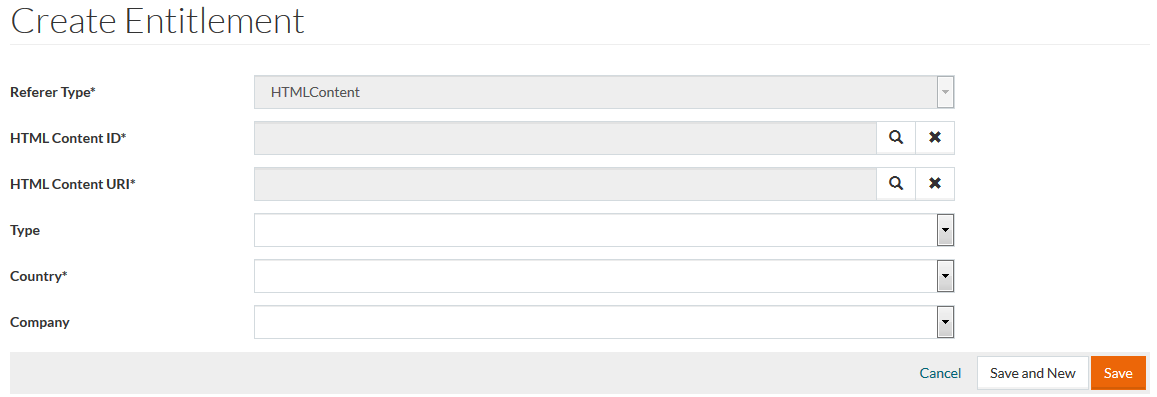
Enter details for the mandatory
HTML Content ID and
HTML Content URI fields or use the
icon to open the Weecem Content search window. Select the
Country from the drop-down menu.
Fill in Company and Type fields if required. Different fields will be rendered below the Type field depending on the Type selected.
Click Save to save the created Entitlement, Save and New to save the entitlement and start a new one or Cancel to return to the search page. The newly added Entitlement will be displayed in the search result list.
Classification Group
The Entitlements with the referer type 'Classification Group' are used for dynamic assignment of products to additional forms (Classification Groups) in OPC during product displaying (opening the Details page) and not during indexing.
Additional Forms are evaluated for a Product based on its Supplier ID, Contract ID, Classification Group ID, etc.

Select the Classification Group Referer Type and click the Create button to add/create a new User Entitlement. This opens the Entitlement editor for the Referer Type - Classification Group.
To fill in the required
Entitled Classification Group field, select the Classification from the drop-down list and the Classification Group using the
icon (the specified Classification Group will be added to the product as a Dynamic Form). Refer to OPC documentation for more details.
Fill in other fields if required. Click Save to save the created Entitlement, Save and New to save the entitlement and start a new one or Cancel to cancel the Entitlement creation and return to the search page.
Edit / Delete Entitlements
Use the respective buttons in the right column of the search results table to edit and/or delete the Entitlement. The process is the same for all Referer Types.

To edit an existing Entitlement, click the Edit button in the search results table to open the editor.
To delete an Entitlement, click the Delete button in the the search results table.
Revisions
It is possible to track the change history for an Entitlement. Use the Revisions option from the drop-down menu by the Edit button in the search results table or the Revisions button in the Entitlement Editor.

Click the Changes link in the Operations column of the Entitlement table which opens the Entitlement differences page where changes if any, will be highlighted in yellow. Close window to return to Versions page and then use the Back link the Versions page to return to the Entitlement editor.