
Access
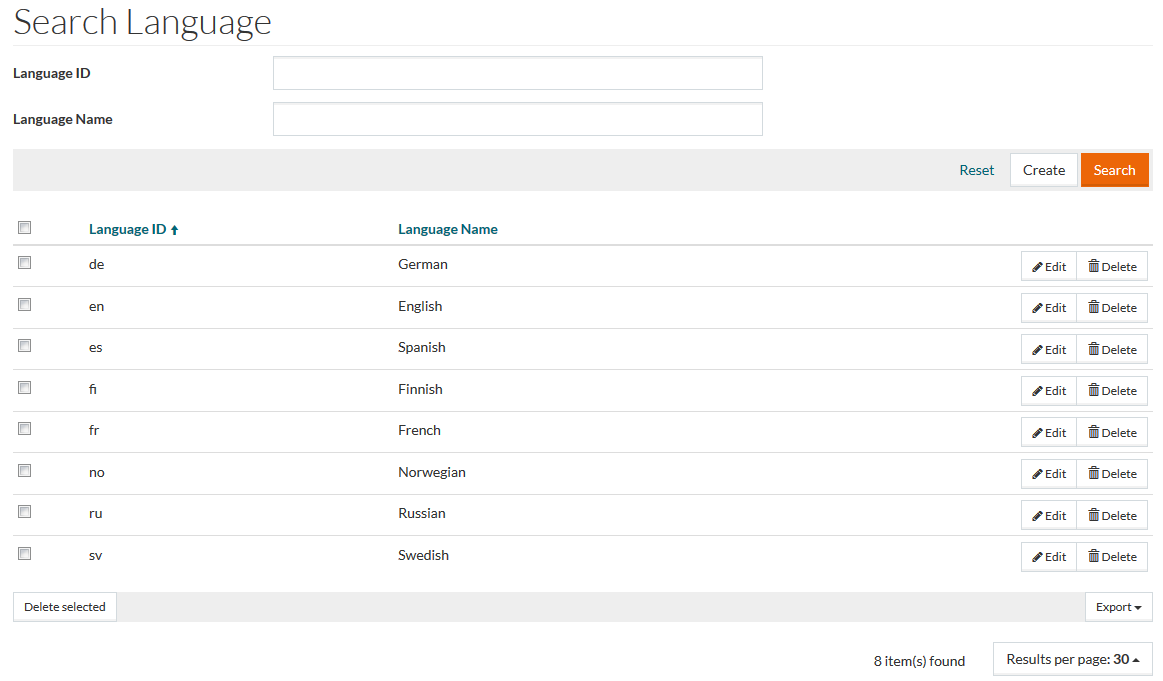
To access the Language Editor, select Master Data from the main menu and then Languages (in the Basic Data section).
Functionality
Suppliers may provide the data in multiple languages, so these languages need to be stored and made available in the system.
See the Basic Actions page for more info on standard actions (search, sort, edit, delete etc.).
Create Language
Click the Create button to create/add a new language. The language editor will be opened.

Enter details for the mandatory Language ID and Language Name fields and click Save to save. Click Save and New to save the changes and proceed creating a new language. Click Cancel to cancel the creation.
Lanugage ID cannot exceed 5 characters and it is recommended to be in 'Language-Country' format as in 'en-US' (English-United States) or 'de-DE' (deutsch-Deutschland).