
Access
Click the Authorization menu - > Permissions menu item to open the search page.
Contents
Functionality
Permissions in the User and Master Data application make it possible to access pages and use functions. These Permissions are not given directly to the user level but to the roles assigned to users. The roles created on User Roles page initially do not have any Permissions, hence, all Permissions for the roles must be assigned to the roles in the Permission Editor. The User can easily see/edit Permissions for the selected User Role.
Permission Editor has two tabs:
Applications Tab
Applications tab provides the possibility to give an access to certain application parts. All available application-specific secured resources are displayed on this page.
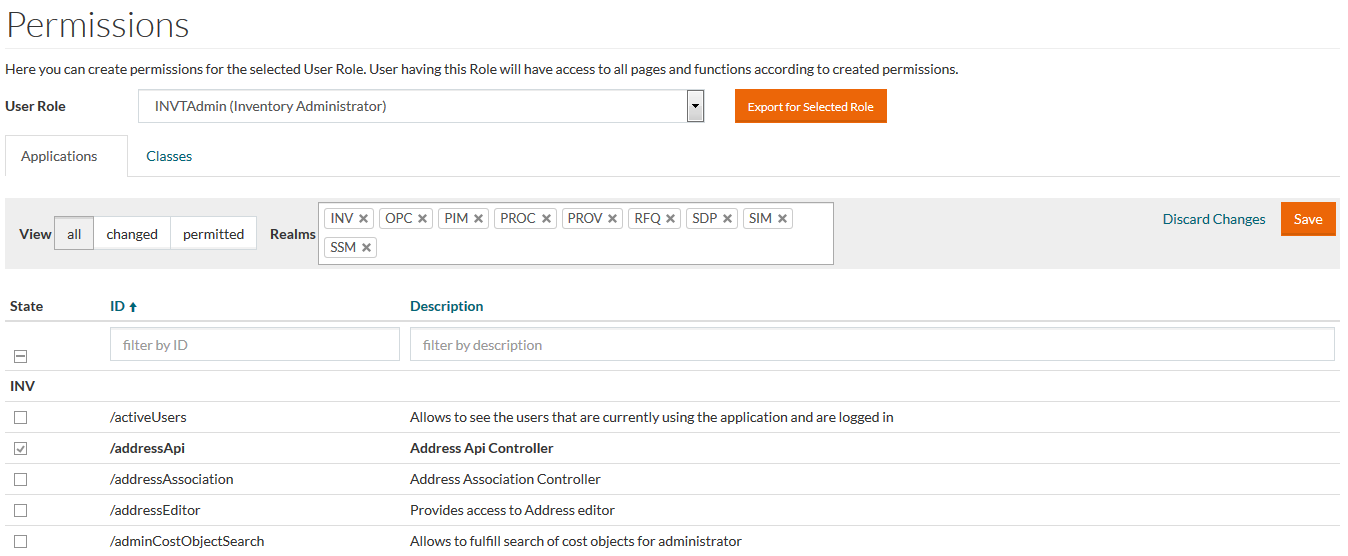
Application-specific secured resources are grouped by the application name inside the grid.
You can filter the resources of certain applications using the Realms section and/or filter and sort the results using ID and Description columns in the header of the grid.
Also you can view all or filter only Permitted/Changed Secured Resources using respective buttons in View section.
Changed Secured Resources states become bold.
Select the appropriate Permission using
 and click the
Save button to add/remove chosen Permissions to/from current User Role.
and click the
Save button to add/remove chosen Permissions to/from current User Role.
Click the Discard Changes link to revert all changes that have been made during editing.
Enabling/disabling access to secured resource could be done on set of all visible items via corresponding checkboxes in the table/grid header.
Classes Tab
Permission Editor's Classes tab operates with the classes. Here the Common Secured resources which control actions on the level of specific Editors are displayed.

You can view all or filter only Permitted/Changed Secured Resources using respective buttons in View section.
You can filter and sort the results using the ID and Description columns in the header of the grid.
Select the required classes with
to add/remove the Permissions for chosen actions (Create, Edit, Delete, View) to/from current User Role.
Click the Save button at the bottom or top of the list to save the results.
Permissions Export
You can export either permissions for all the existing roles or only for the particular one. In both cases the permissions set will be exported as an .xls file.
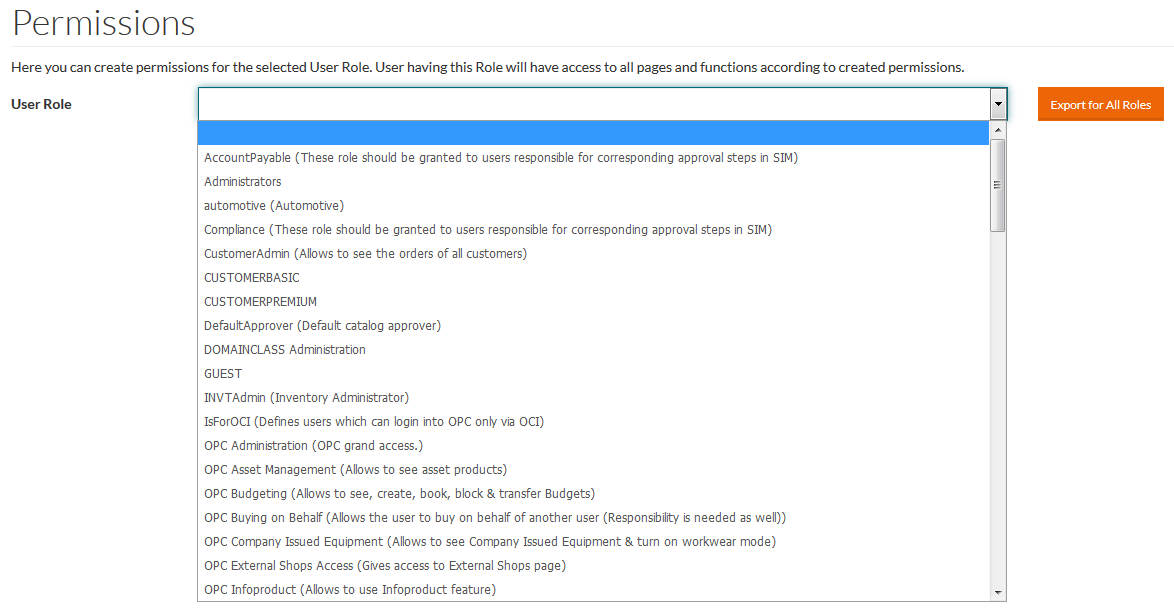
To export permissions for a particular role, select it from the User Role drop-down list and click the Export for Selected Role button.
To export permission for all the roles select the empty option at the top of the User Role drop-down list and click the Export for All Roles button.