
Access
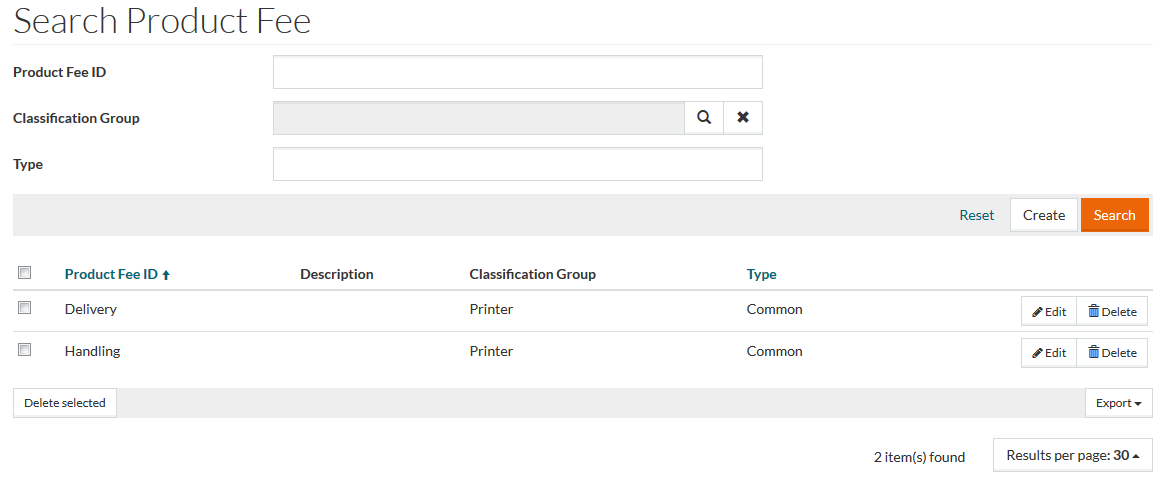
To open the Product Fees editor, select Master Data from the main menu and then Product Fees (in the Customer/Supplier section).
Contents
Overview
Product Fee is an obligatory payment for certain services. When Products get shipped, there are additional fees associated with the Products for activities like Transportation, Packaging, Insurance etc. and for taxes.
Fees can relate to certain product groups, different properties of products or specific products. Fees typically come in the form of fixed (money) or variable (percentage) add-ons on the product price.
Product Fees Editor gives you an ability to manage various Product Fees.
See the Basic Actions page for more info on standard actions (search, sort, edit, delete etc.).
Create Product Fee
Click the Create button to add a new Product Fee.
Two tabs are available:
- General
- Rules
General Tab
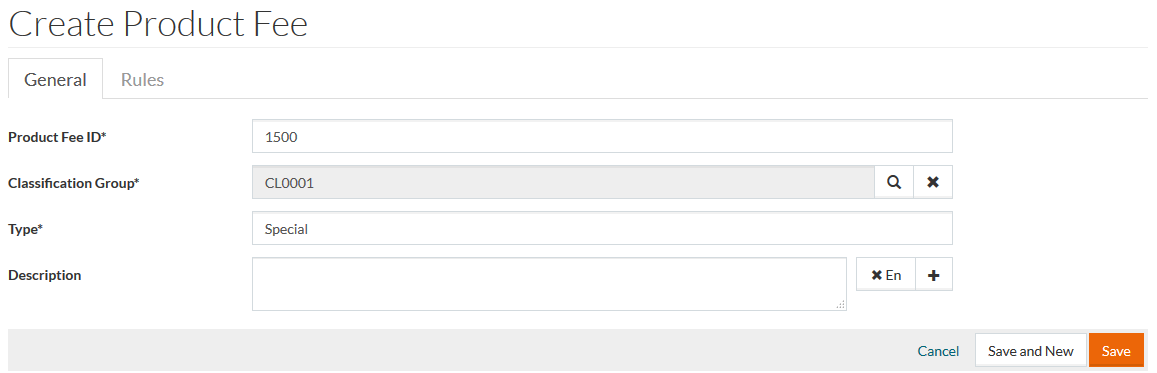
Enter the following mandatory data:
- Product Fee ID
- Classification Group
- Type
The
Description can be entered in multiple languages - to add more than one description click the
 icon and choose the desired language. Click
 to delete the selected description.
Click Save to save a new Product Fee, Save and New to save current data and proceed to the creation of the another Product Fee or Cancel to discard all the changes.
Rules Tab
On the Rules Tab, you can manage the Product Fee Calculation Rules.
Create Product Fee Rule
Click Create in the bottom left corner of the Rules list to add a new Rule.
You can define the following parameters:
- - choose the existing Product Fee.
- - choose a Catalog using the search icon. Current Product Fee Rule will be applied to the Products contained in the selected Catalog.
- - choose a Contract using the search icon. Current Product Fee Rule will be applied to the Products assigned to the selected Contract.
- - choose a Classification Group using the search icon. Current Product Fee Rule will be applied to the Products assigned to the selected Classification Group.
- - choose a Classification using the search icon. Current Product Fee Rule will be applied to the Products assigned to the selected Classification.
- - choose a Product using the search icon. Current Product Fee Rule will be applied to the selected Product.
- - choose a Supplier using the search icon. Current Product Fee Rule will be applied to the goods, offered by the selected Supplier.
- - choose a Customer using the search icon. Current Product Fee Rule will be applied to the all the Products available for the given Customer.
- - choose the option from a drop-down:
- Absolute - the Fee is static and doesn't depend on the Product's Price.
- Relative - the Product fee is calculated as a percentage of the Price.
- - choose the currency for the Absolute Fee amount.
- - an Absolute Fee amount.
- - Fee as a percentage, relative to the Product's Price.
After all the required parameters are filled in, click Save to save the entered data, Save and New to save current entry and proceed to the creation of the next Product Fee Rule or Cancel to discard the changes.
Click Refresh to refresh Product Fee Rules List.