
Access
Select Master Data from the main menu and then Statuses (in the Basic Data section) to open the Status Editor.
Functionality
Products are subject to constant change. Product can be created with the "New" (100) status or the "Confirmed" (400) status, whenever those items needs to be posted on the application for customers. Statuses are useful to mark groups of products e.g. to make them easily accessible for mass changes of catalog assignments for products or for the removal of outdated products.
The following statuses of products are available, as an example for statuses:
Product Status | Meaning |
|---|---|
070 |
|
080 | Error |
090 |
|
100 |
|
105 |
|
110 | Unchanged |
150 | Duplicated |
200 |
|
220 | In PO Approval |
| 225 | Translate |
| 250 |
|
| 275 | Translation in Progress |
300 |
|
350 | Translate |
390 |
|
395 | Supplier Approved |
400 |
|
420 |
|
450 |
|
500 | Ordered |
520 | Partially Ordered |
540 | Cancelled |
560 | Withdrawn |
600 |
|
620 | Partially Delivered |
640 | Final Receipt |
700 |
|
720 | Partially Invoiced |
800 |
|
See the Basic Actions page for more info on standard actions (search, sort, edit, delete etc.).
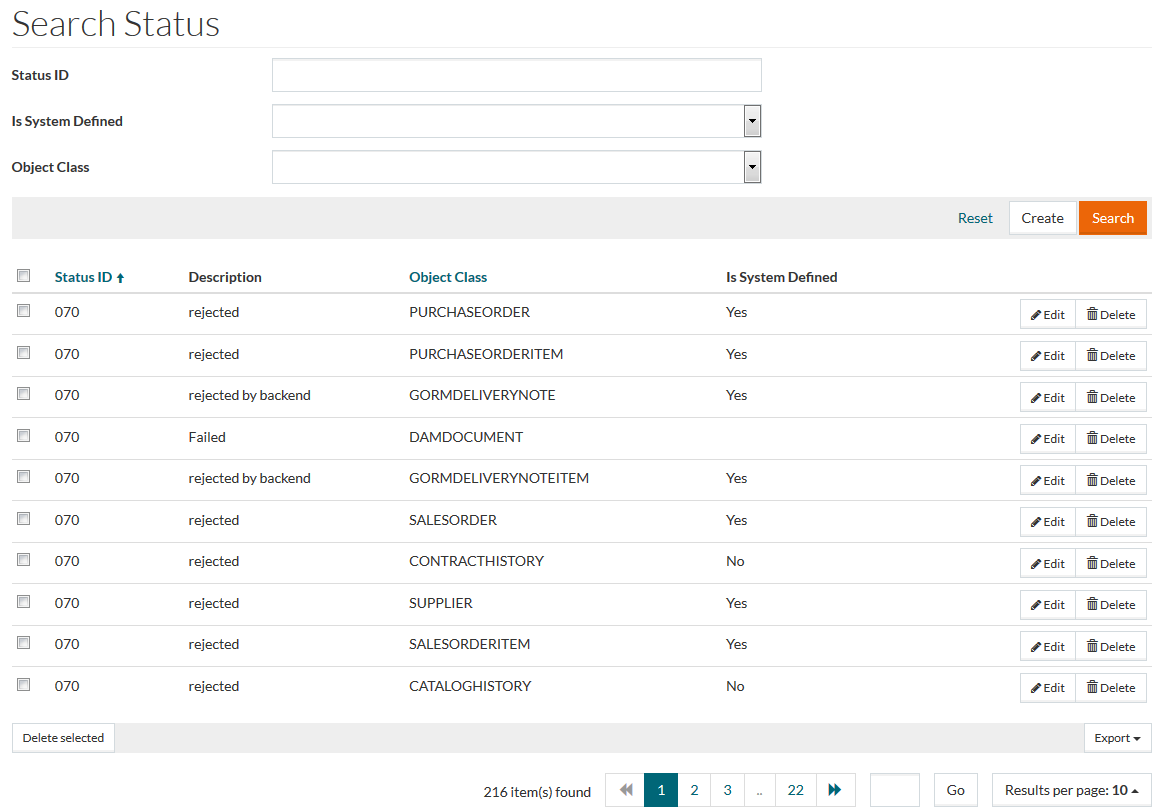
Create Status
To dd a new status click the Create button. This will open the status editor. Enter details for these mandatory fields:
- Status ID - enter a unique value for identification (e.g. 250).
- Object Class - select the type of data that represents the Status ID entry (whether it is Supplier, Purchase Order, Sales Order Item etc.).
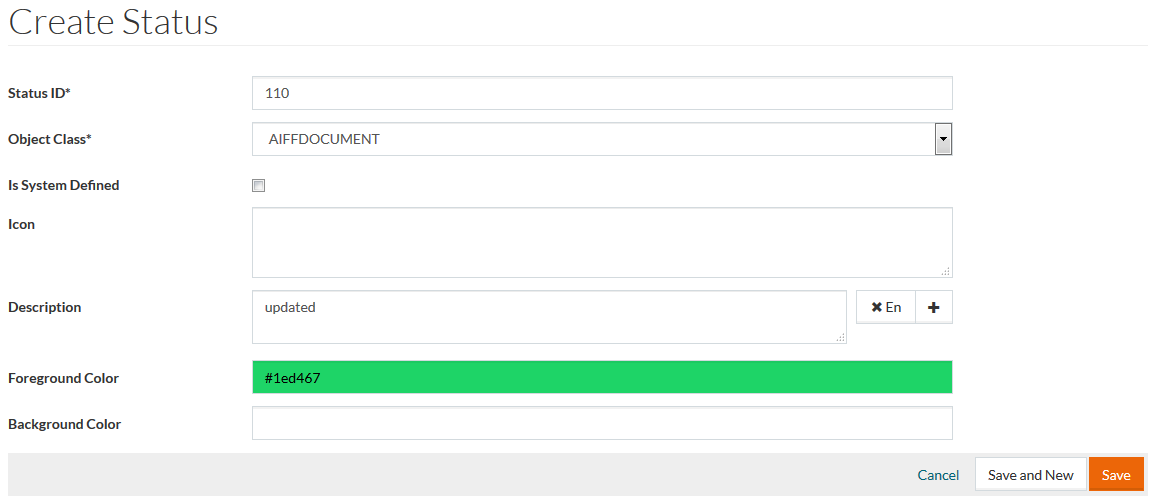
If required, specify:
- Is System Defined - select using
 .
. - Icon - enter the path to the image placed in the Work Area to assign a variable icon to a status.
- Description - enter the status description. To add description in the other desired language, click
 and select the language from the drop-down list. Click
 to delete the description entry.
 - Foreground Color and Background Color - enter the foreground and background color specifications or select the color from the palette available by clicking the input field.
Click Save to save the status. Click Save and New to save the changes and proceed creating a new one. Click Cancel to cancel.