
Access
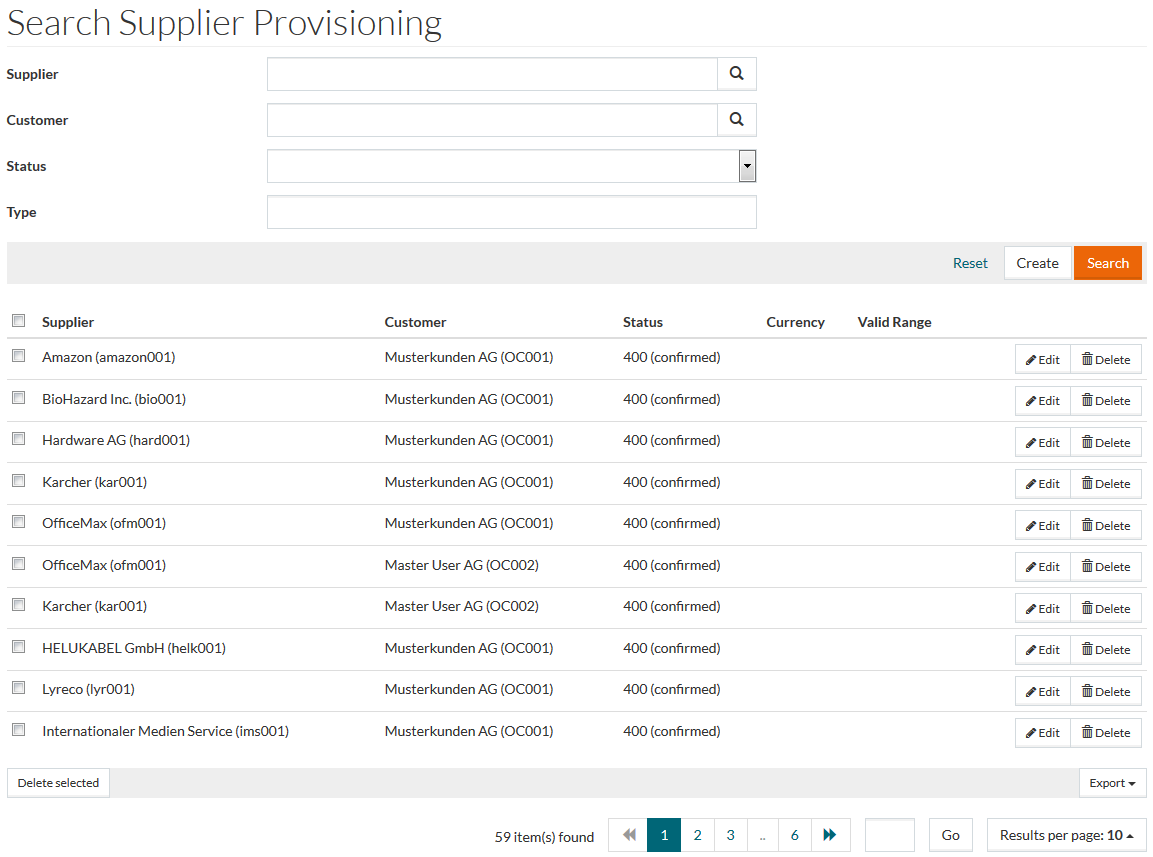
To open the Supplier Provisioning page, select Master Data from the main menu and then Supplier Provisioning (in the Customer/Supplier section).
Contents
Overview
Supplier Provisioning is the administration of relations between customers and suppliers. It sets up relationships between the customers and suppliers and makes it possible to assign the supplier catalogs to customers.
See the Basic Actions page for more info on standard actions (search, sort, edit, delete, etc.).
Create Supplier Provisioning
On the Search page, click the Create button to add or create Supplier Provisioning. This opens the Supplier Provisioning editor.
General Tab
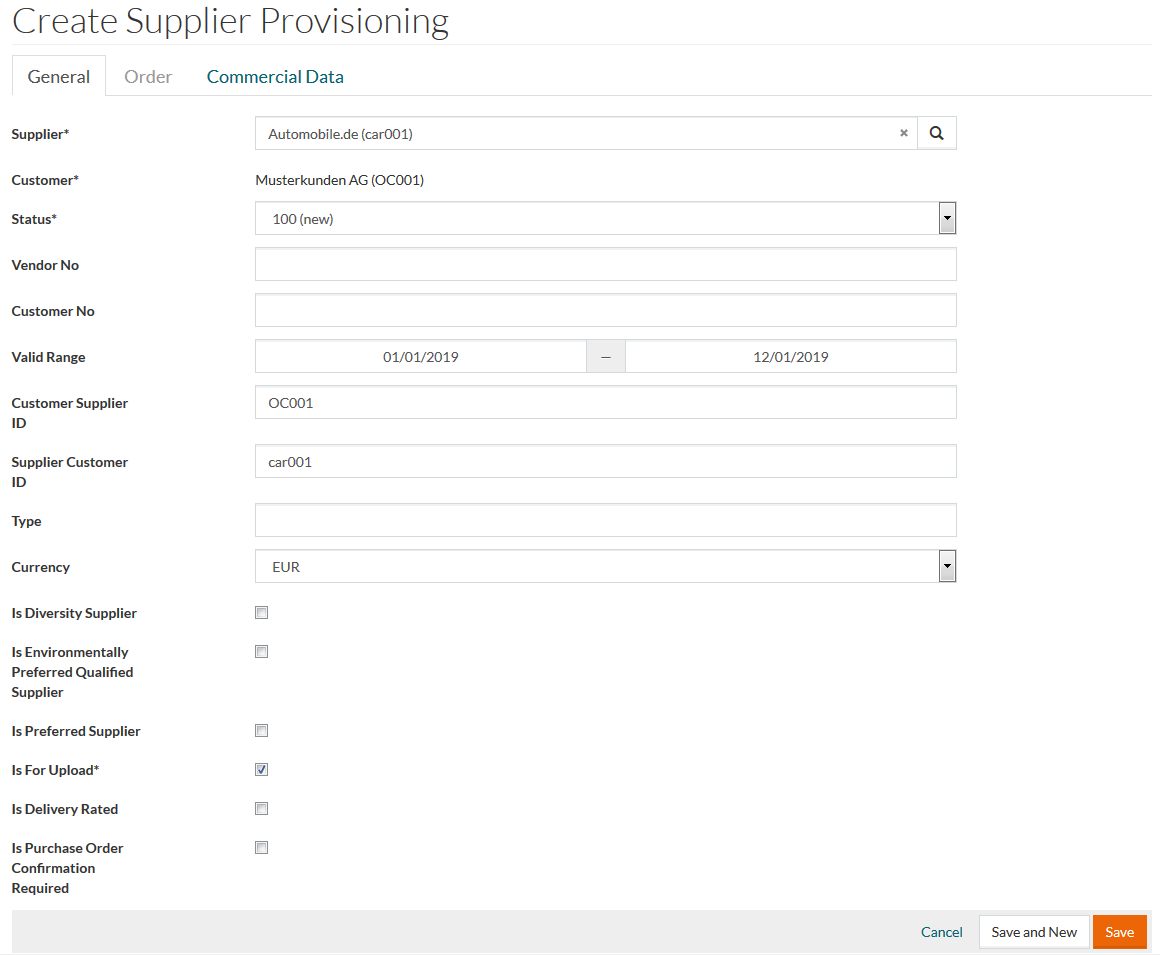
Fill in the relevant details for Supplier, Customer or click the search icon to search and select from the respective browser windows. Select Status from the drop-down menu.
The Is for Upload check box is selected by default meaning the customer will appear in the customers list for the relevant supplier during the catalog processing in SSM.
Click Save to save details for the new supplier provisioning entry or Cancel to cancel.
After confirming the creation, the Order tab becomes available.
Order Tab
If required, click the Order tab to add Order Information for the newly created Supplier Provisioning.
Manual Prod Receipt: the standard behavior meaning that goods receipts are generated manually. The check box is pre-selected when the Supplier Provisioning is created.
To enable automatic scheduling for Goods Receipt generation, deselect the Manual Prod Receipt check box and define the following (optionally):
- Waiting Period: the number of days to wait till the Goods Receipt is automatically generated.
- Limit Amount For Auto Goods Receipt: the maximum amount for the automatic generation of Goods Receipts.The automatic booking will be performed if the total net price of the purchase order is less than the limit amount.
Enter details, click Save to save, click the Save and New button for a new supplier provisioning and Cancel to cancel.
Commercial Data Tab
If required, click the Commercial Data tab to add commercial details to the newly created Supplier Provisioning.
Click the
 icon to see the details of parameters.
Select the
Terms of Payment and
Terms of Delivery using the search icon. Select the
Method of Payment from the corresponding drop-down menu.
Enter other details, if necessary, and click the
Save button. Click the
Save and New button to save and start creating a new Supplier Provisioning entry. Click
Cancel to discard the changes and cancel the operation.
If there are several Supplier Provisioning entries created and you are editing one of them, you will see the additional
Save and Next button. Click it to go to the same tab of the next entry.