Access
To get access to the Supplier Editor, select Master Data from the main menu and then Suppliers (in the Customer/Supplier section).
Contents
Overview
A supplier is a person or enterprise who is a manufacturer, processor or packager of a controlled product, a service provider or who, in the course of business, imports or sells controlled products.
See the Basic Actions page for more info on standard actions (search, sort, edit, delete etc.).
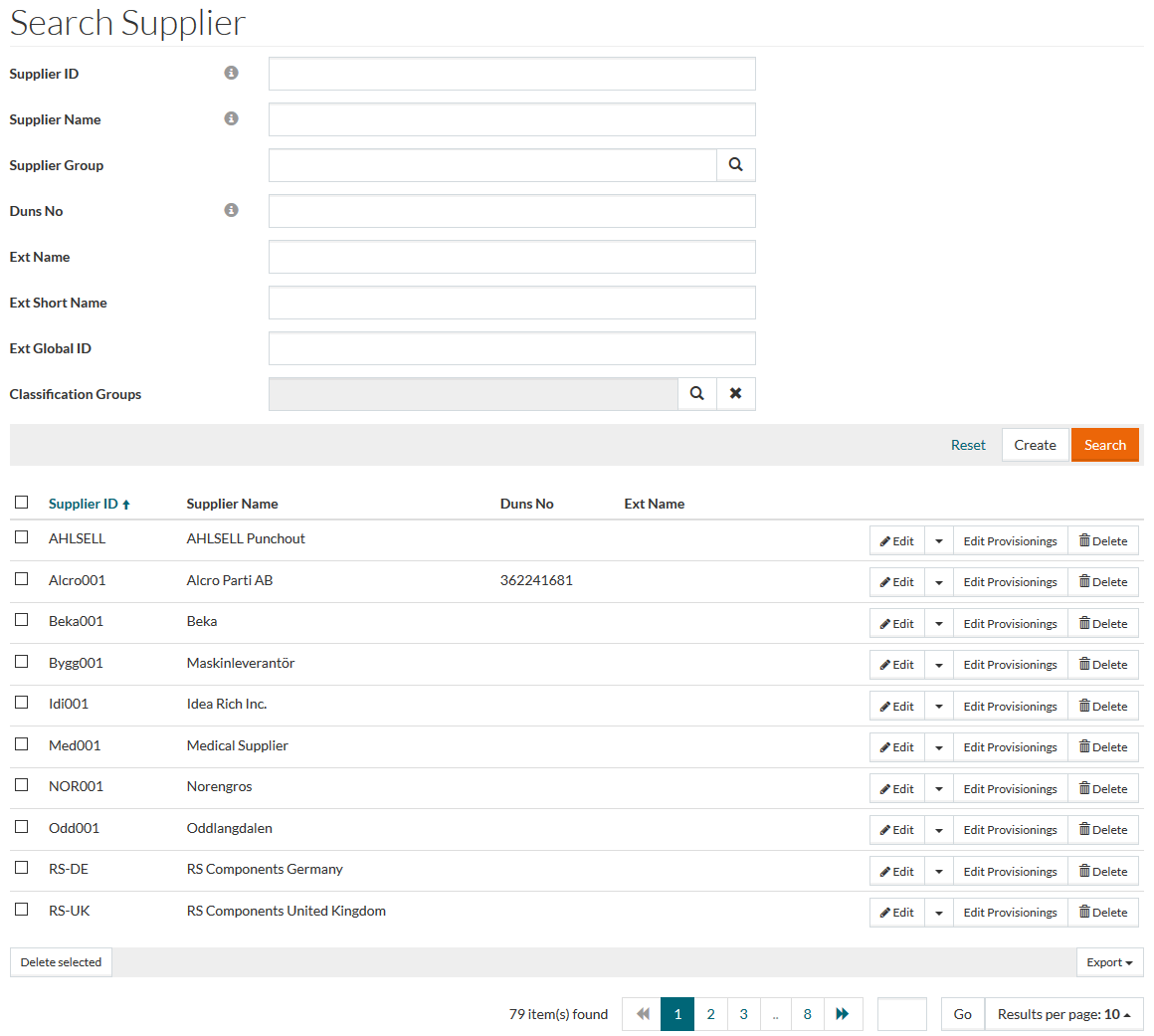
Click the
 icon to see the reference information regarding the selected parameter.
Create Supplier
Click the Create button to create a new supplier. When the Supplier Editor opens, enter the data, click the search icon or use drop-down menus to search and select data wherever applicable.
General Tab
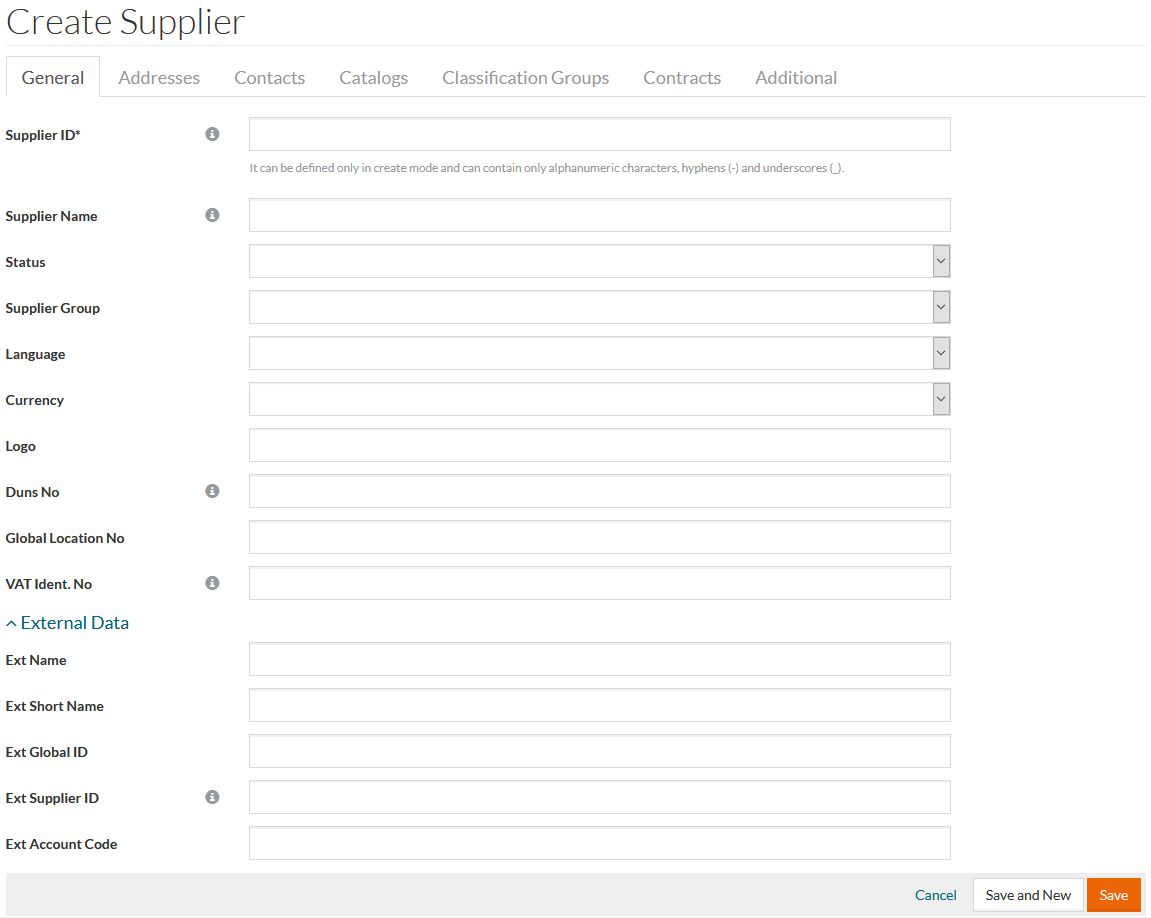
Supplier ID (mandatory) can contain only alphanumeric characters (letters A-Z, numbers 0-9), hyphens ( - ), hash/number sign (#) and underscores ( _ ).
In the Logo field, you can type the file name (for example, logo.jpg) for the image uploaded into supplier-specific /suppliers/<Supplier ID>/registry folder in the Work Area. This logo image will be used on Supplier Information page in OPC.
Fill in the relevant details and click Save to save supplier details after editing, Save and New for a new supplier or Cancel to return to the search page.
After confirming creation, other tabs of the editor namely - Addresses, Contacts, Catalogs, Classification Groups, Contracts and Additional - are available.
Addresses Tab
Click the Addresses tab to search or add address associations for the newly created supplier.
Use the icons in Actions column to execute the needed operations:
Click
 to remove the selected address association from the list.
Click
 to edit selected address association.
By selecting the corresponding radiobutton in Is Default column you can set the chosen address as default.
Click
 to create a new address.
Enter new Address, this field is mandatory. Enter or select the other fields as required, on completion, click Save and New to save and create a new address association, Save to save or Cancel to return to the search page.
Click
 to search and add new address association to the list.
Select the check box and click the Select button to add new address association to the list.
Click Save to save, click Save and New to save and create a new address, click Cancel to cancel.
Contacts Tab
Click the Contacts tab to search/edit/delete contact associations for the newly created supplier.
Contacts can be managed in Contact Editors from PIM ( Setup > Customer/Supplier Management > Contacts), SSM ( Master Data > Contacts (in the Provisioning section) or PROV ( Master Data > Contacts (in the Customer/Supplier section).
Click
to edit the selected contact.
Click
to delete the selected contact association.
Click
to search and add new contact association.
Select the check box and click the Select button to add new contact associations.
The newly added contact association will be listed in the contact association table.
Click Save to save the changes.
Catalogs Tab
Click the Catalogs tab to search or add catalog provisioning for the newly created supplier.
Click Edit or Delete in the table to edit or delete a catalog provisioning entry.
Click the Create to create catalog provisioning association entry for the supplier.
To create a new catalog use the
Catalog Editor.
To get access to the
Catalog Editor you can use
PIM (
Products
> Catalogs > Catalogs)
or
SSM (
Master Data
>
Manage Catalogs (in the
Provisioning section) or
PROV (Master Data > Catalogs (in the
Catalogs section).
Enter new Supplier, Catalog and select Status from the drop-down list. On completion, click Save and New to save and create a new catalog association, Save to save or Cancel to discard changes and return to the search page.
The newly added catalogs will be listed in the catalog provisioning table.
Click the Refresh button to refresh the page.
Classification Groups Tab
To add supplier to classification group association, click the Classification Groups tab. This section is used to define classification groups the supplier has access to and can use.
Click Edit or Delete to edit or delete a supplier to classification group assignment entry.
Click the Create button to create classification group association entry for the supplier.
Classification Group and Supplier fields are mandatory. Click the search icon to enter values into the fields.
After making the required changes, click Save to save, Save and New to save changes or Cancel to return to the search page without saving changes.
Click the Refresh button to refresh the page.
Contracts Tab
To add a supplier contract usage, click the Contracts tab. This section is used to define the contracts the supplier has access to and use.
Click Edit or Delete to edit or delete a contract provisioning entry.
Click the Create button to create contract provisioning entry for the supplier.
Enter new Supplier, Contract and select Status from the drop-down list of options. Fill in other fields if required. On completion, click Save and New to save and create a new address association, Save to save changes or Cancel to discard changes and return to the search page.
The newly added contract will be listed in the contract provisioning table.
Click the Refresh button to refresh the page.
Additional Tab
Click the Additional tab to open Attribute Value Editor. In case there are any attributes assigned to the supplier, they will be displayed here.
Supplier attributes can be managed in Supplier Attributes Assignment Editor. To get access to the Supplier Attributes Assignment Editor you can use PIM ( Setup > Classification > Supplier Attribute Assignments) or SSM (Master Data > Supplier Attributes Assignment (in the Classification section) or PROV ( Master Data > Supplier Attributes Assignments (in the Classification section).
Select the language from the drop-down list and add/edit attribute values, assigned to a specific language. Make the necessary changes and click Save.
After saving the attribute values the Revisions link will be available. Click the link to see the list of attribute changes.
Edit Provisionings
Click Edit Provisionings to go to the Supplier Provisioning page and manage Customer-Supplier relations.
Revisions
To get the list of supplier revisions select the Revisions option from the drop-down menu on the Search Result page or click the Revisions button on the Edit Supplier page.
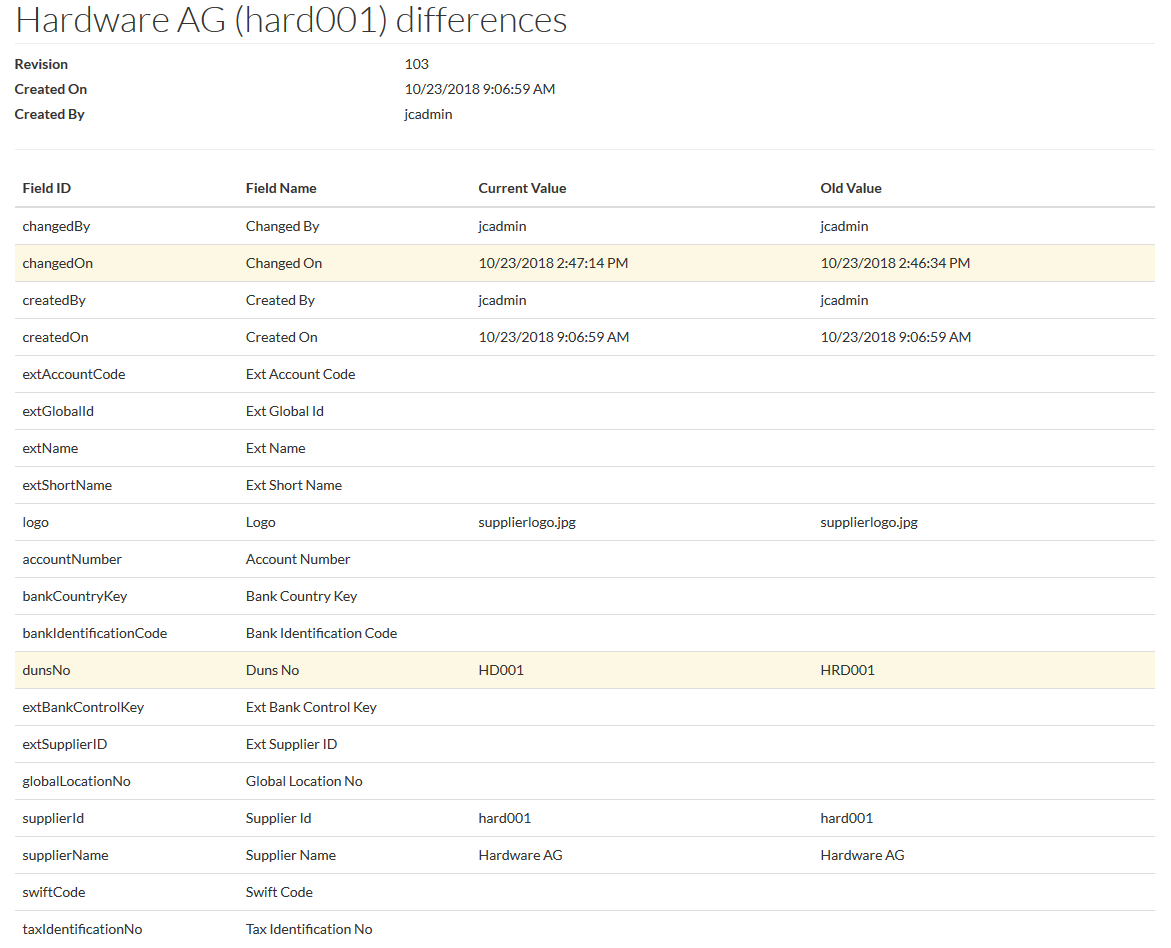
Click the Changes to see Revision details: