Access
To open and access User Groups, in the User and Master Data, click User and Role Administration menu -> User Groups menu item.
Contents
Functionality
User Groups can be used to create and organize various users into groups. Users are grouped together e.g. for easy creation and maintenance of permissions for Provisioning Manager activities for all users belonging to the group. Each user may be a member of several groups.
See the Basic Actions page for more info on standard actions (search, sort, edit, delete etc.).
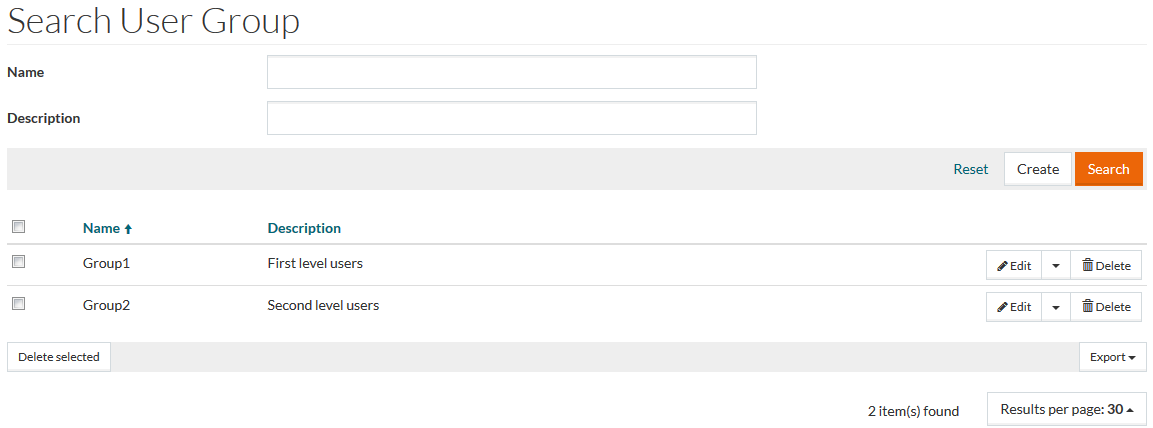
Create User Group
Click the Create button to open the User Group Editor to create/add a new User Group. General tab of the User Group Editor opens.
General tab
On the General tab enter the Group Name and the Description, if required.
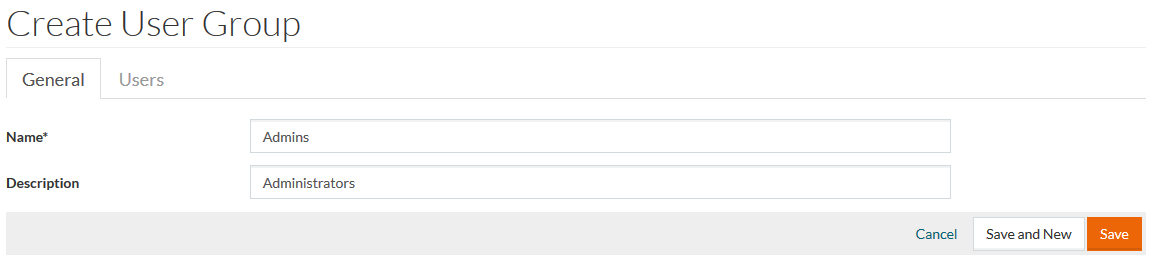
Click Save to save the new User Group. This will make the Users tab active.
Users tab
On the Users tab you can assign Users to the created group.
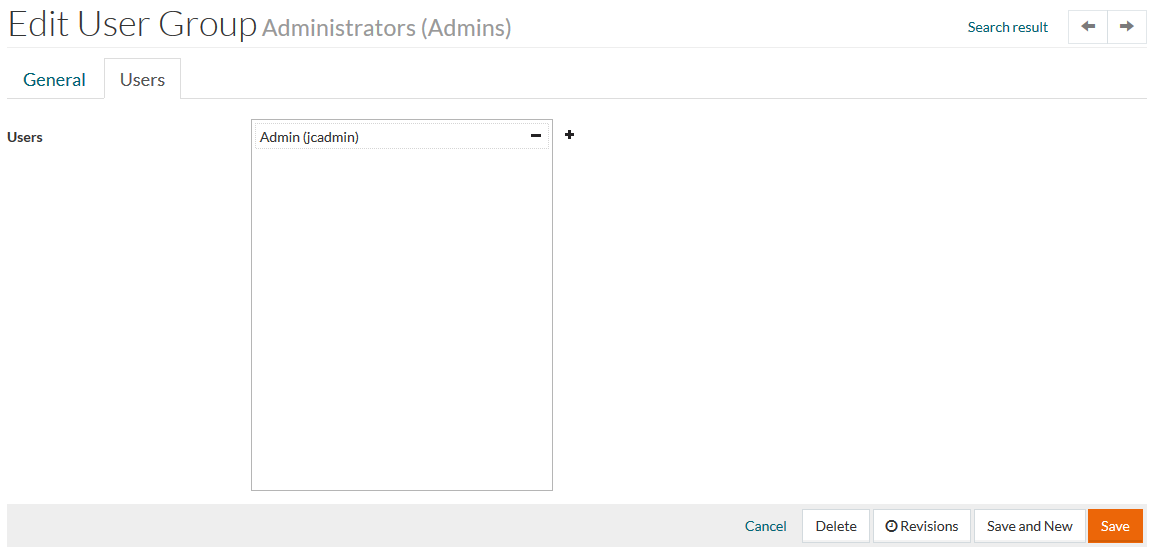
Click
 to assign a User to the Group. Click
 to revoke the assignment.
Click Save to save the new User Group and return to the search page or click Cancel to cancel the creation of the new User Group and return to the search page.
Revisions
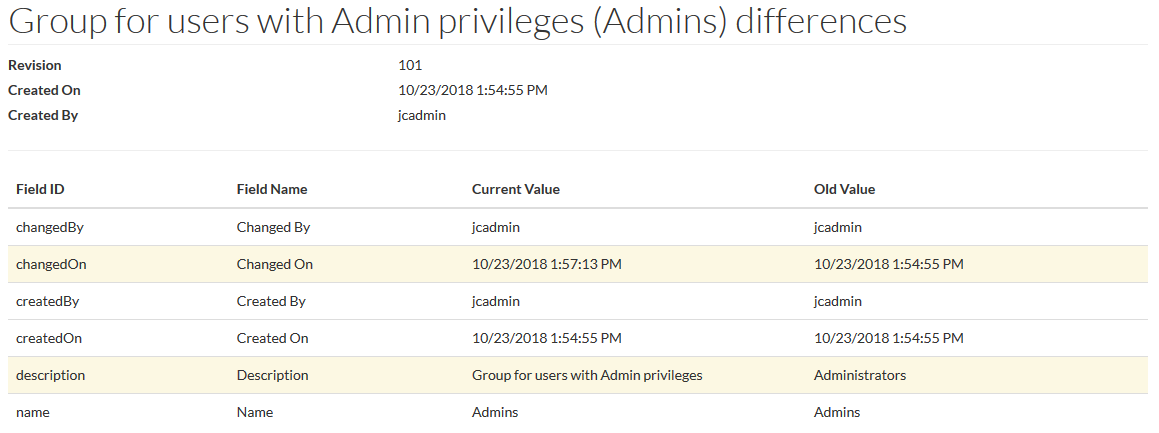
To get the list of User Group revisions select the Revisions option from the drop-down menu on the Search Result Page or click the Revisions button on the Edit User Group page.
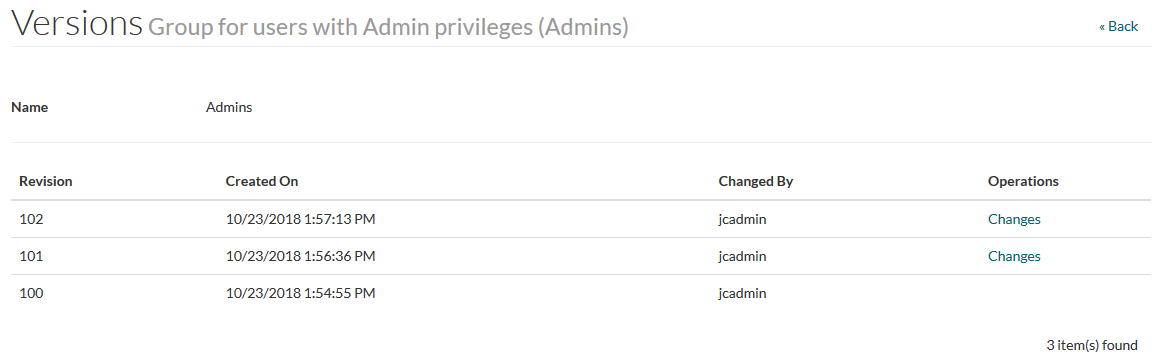
Click the Changes link to see the Revision details: