Access
To open the Customer Views page, select Master Data from the main menu and then Customer Views (in the Customer/Supplier section).
Contents
Overview
Views restrict what a user can or cannot see because it “restricts” visibility of Products based on the Contracts/Catalogs assigned to the user's company/Customer. Distribution of visibility depends on the level of responsibility assigned to the User.
A user belongs to a Customer that has multiple Catalogs and Contracts assigned. A user also belongs to a Buying Organization. These Buying organizations have multiple Views assigned.
A user sees the Products of the Catalogs/Contracts of the Customer restricted by the Views that are coming from the Buying Organization.
Therefore, by assigning a User to a Buying Organization, you will be able to distribute the administration of Views to the Buying Organization level.
The Customer Views Editor enables a user to:
- Create and edit customer views.
- Search the customer views by their ID or description, by customer or buying organizations they are assigned to.
- Integrate the Views into OPC, so that the visible Products are restricted.
You can assign a customer view to a buying organization in Buying Organizations Editor on the Buying Organizations page.
Search Customer Views
Enter search criteria or browse using
 wherever applicable to fill in the parameters. Click the
Search button to initiate search and display search results.
wherever applicable to fill in the parameters. Click the
Search button to initiate search and display search results.
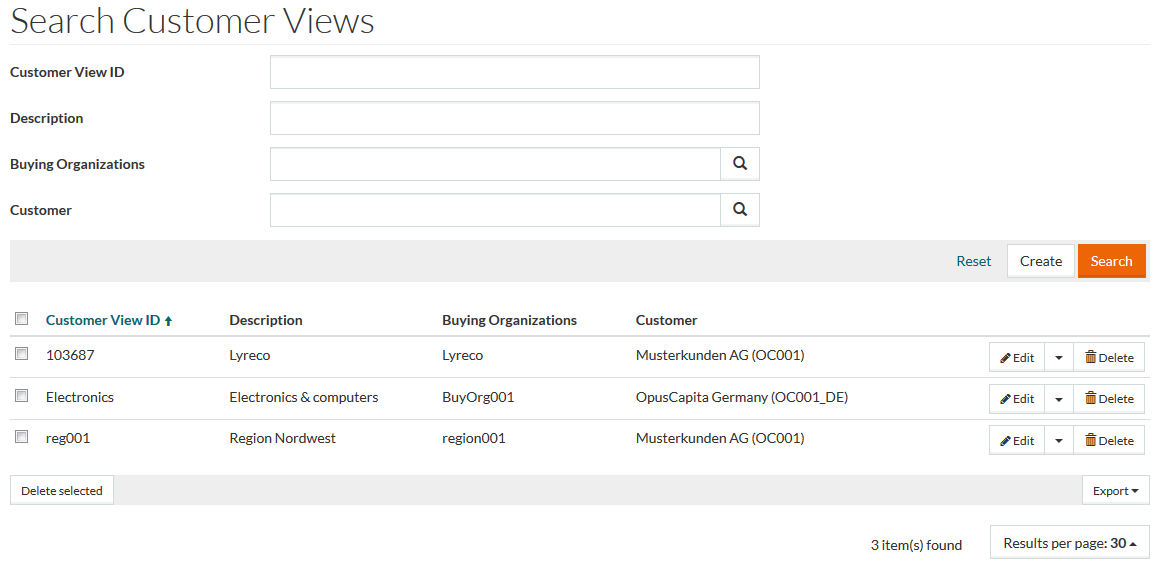
Search displays the entire List of Views if search parameters are blank.
See the Basic Actions page for more info on standard actions (search, sort, edit, delete etc.).
Create Customer Views
To add/create a new View, click the Create button, which opens the Customer View Editor.
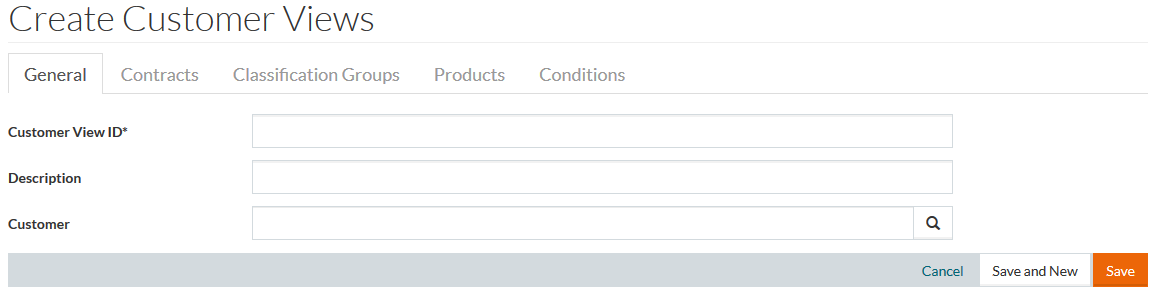
Enter Customer View ID (mandatory), fill in the Description field if required.
In case a current user is under customer assignment, the Customer field is pre-filled with the current customer name.
Click Save to save. Saving the newly created entry activates other tabs:
Contracts
You can restrict/allow visibility by contracts.
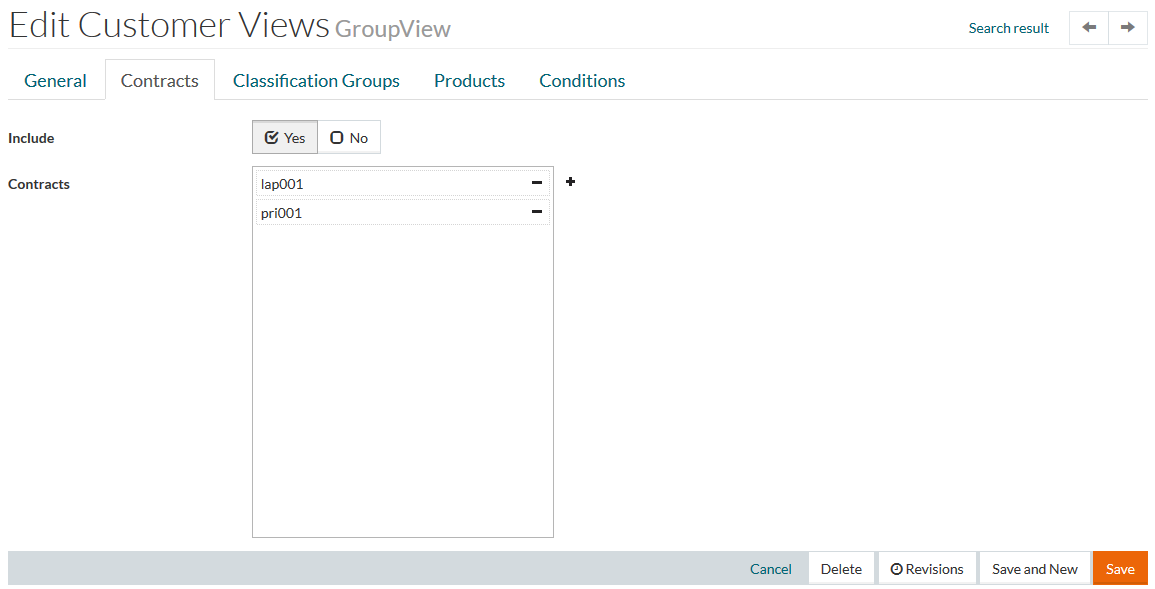
Select Yes or No using
 to include or exclude catalogs from the view.
Use
 icon to open
Search for Contracts and select contracts to add, and
icon to open
Search for Contracts and select contracts to add, and
 to remove the contact from the list.
Click Save to save the changes.
Classification Groups
You can restrict Product Visibility based on Classification Groups.

Select Yes or No using
to include or exclude classification groups from the view.
Use
icon to open
Search for Classification Groups and select the groups to add, and
to remove the group from the list.
Click Save to save the changes.
Products
You can define products visible or invisible for the customer.

Select Yes or No using
to include or exclude products from the view.
Enter Catalog ID or select it using
, then type the Product ID and click the Add to add the product.
There is no validation for the Product ID, so please make sure you enter it correctly.
Click
 to delete the product entry from the view.
Click Save to save the changes.
Conditions
Conditions can be used to filter products by some criteria.

Select Yes or No using
to include or exclude products compliant with the selected conditions from the view.
Conditions can be set by selecting a property from the drop-down menu under the section Property Name.
The following properties are available for selection:
- IsMainProdLine
- Keywords
- Manufacturer Name
- Manufacturer Product No.
- Special Treatment Class
- Supplier
Select the property, then select the Operator:
- =: for 'equals'
- !=: for 'doesn't equal'
Type the property value into the
Filter Value. Click
 to add the condition.
Click
 to delete the condition from the view.
Click Save to save the changes.
Revisions
Select the Revisions option from the Edit drop-down list on the search results page or click the Revisions button in the customer view editor to get the list of revisions of the customer review entry.
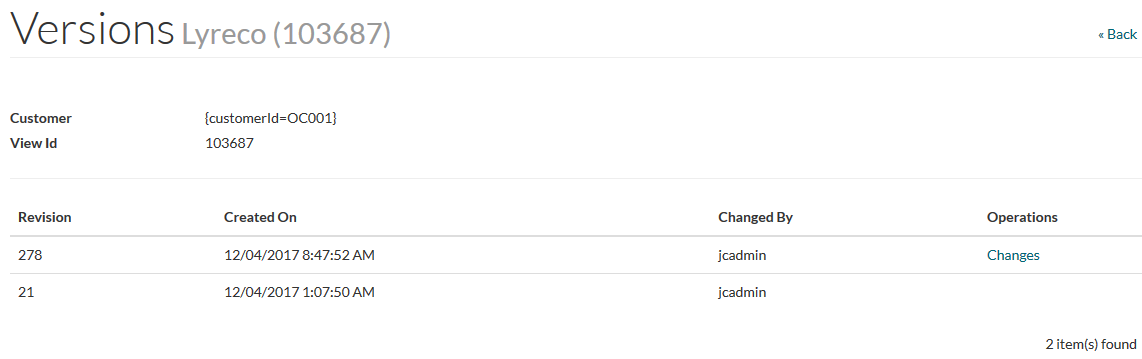
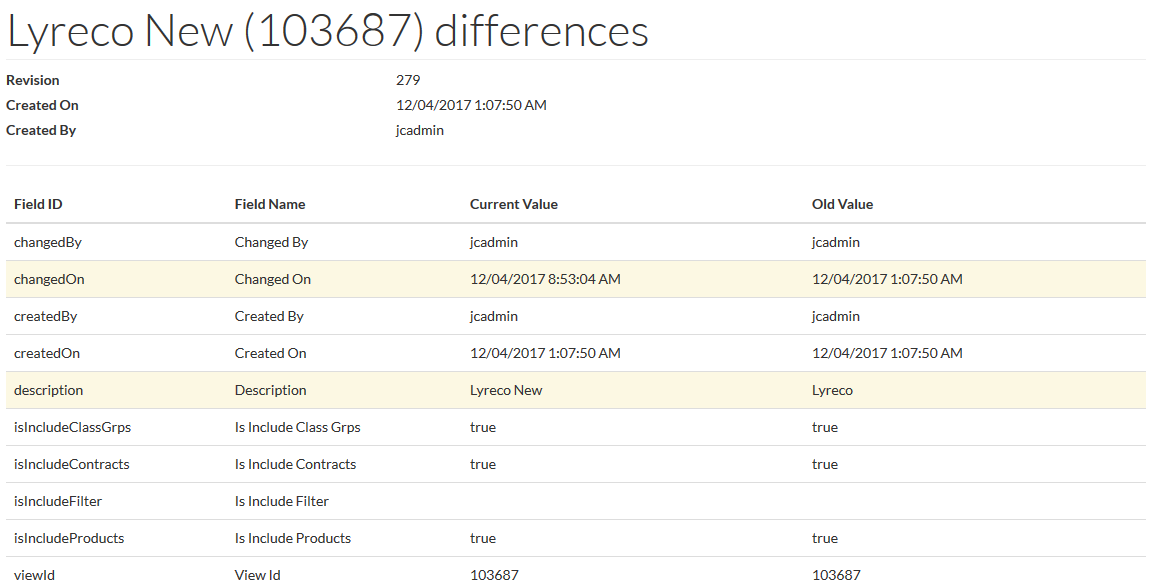
Click the Changes to see the revision details: