Access
To get access to Customer Editor, select Master Data from the main menu and then Customer (in the Customer/Supplier section).
Contents
Overview
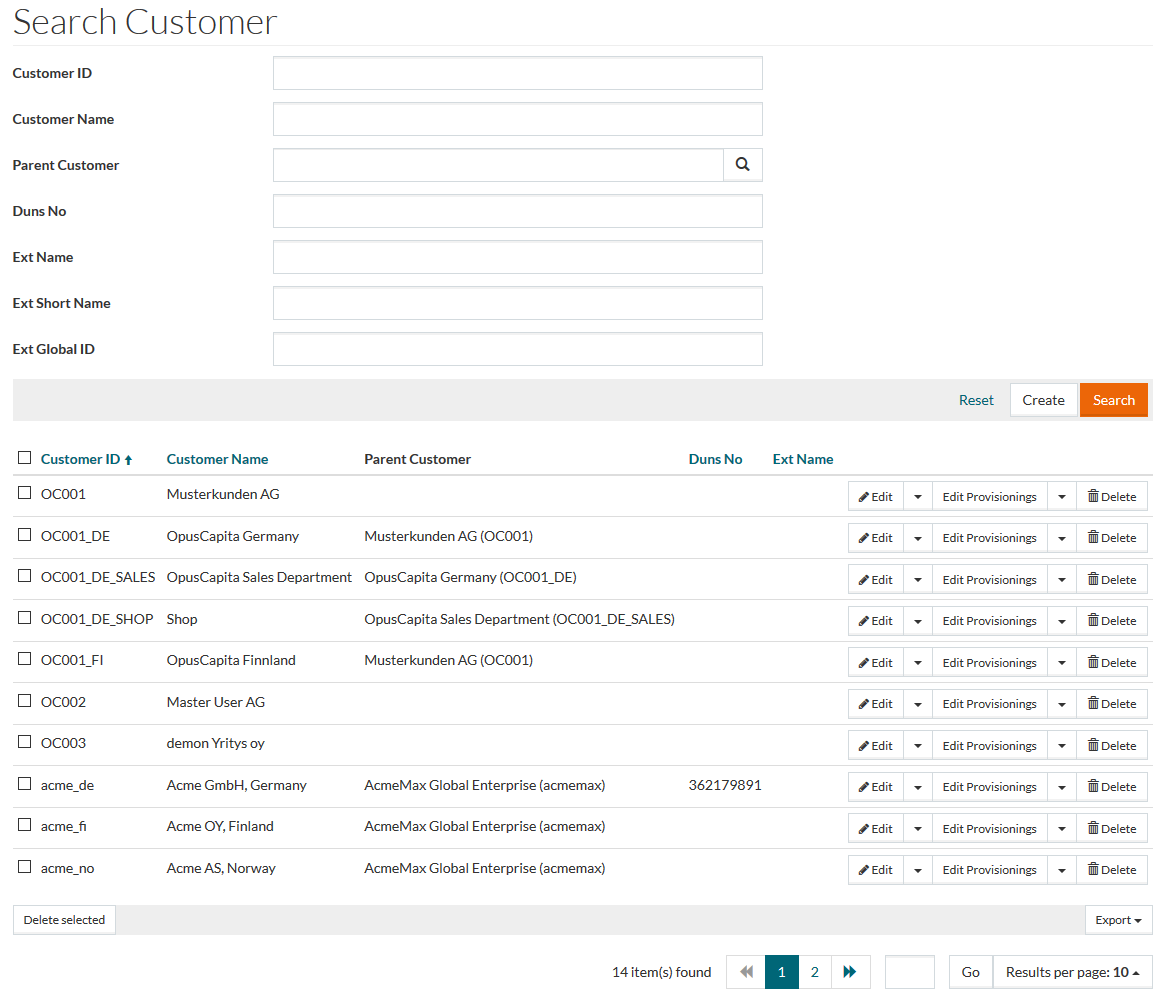
Customer page is a repository for all customer-related data like tax, currency information etc. See the Basic Actions page for more info on standard actions (search, sort, edit, delete etc.).
Create Customers
On the Customer search page, click the Create button to add or create new Customers.
General Tab
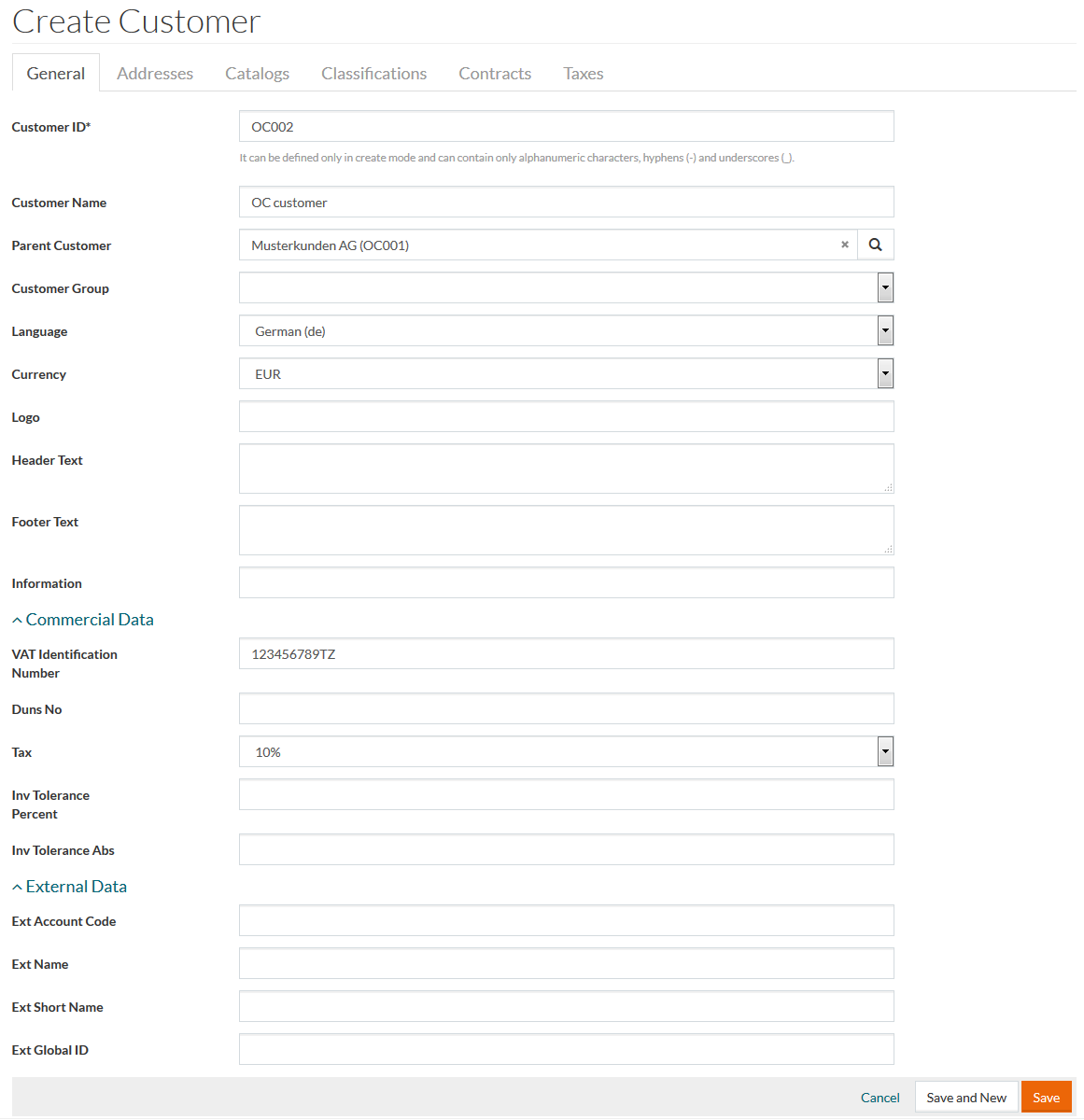
Customer ID can contain only alphanumeric characters (letters A-Z, numbers 0-9), hyphens ( - ), underscores ( _ ) and hash/number sign (#).
Fill in the relevant details and click Save to save customer details. After saving, other tabs of the editor, namely - Addresses, Catalogs, Classifications, Contracts and Taxes become available. Click Cancel to cancel and return to the search page.
Addresses Tab
Click the Addresses tab to search or add address associations for the newly created customer.
Click
 icon to select and add existing address to customer's address associations.
Click
 and
and
 to edit or delete an address association entry.
To create or add a new address, click
 to open the address editor.
Enter new Address ID and fill in the other relevant details and click Save to save an address after editing, Save and New to proceed with creating a new address and Cancel to return to the search page.
The newly added addresses will be listed in the customer address associations table.
Catalogs Tab
To add customer catalog usage, click the Catalogs tab. Catalog usage is used to define the catalogs the customer has access to.
Click
to add a Usage field. Click
to edit and
to delete a Catalog Usage entry field. It is possible to add as many Catalog usage entries as may be required.
After making the appropriate changes, click Save to save changes, Save and New for a new catalog and Cancel to return to the search page.
Classifications Tab
Click the Classifications tab to mange the customer's classifications.
Click
to add a Usage field. Click
to edit and
to delete a Classification Usage entry field. It is possible to add as many Classification usage entries as may be required.
After making the appropriate changes, click Save to save changes, Save and New for a new classification and Cancel to return to the search page.
Contracts Tab
To add customer contract usage, click the Contracts tab. This section is used to define the contracts the customer has access to and can use.
Click
to select the contract to be assigned. It is possible to add as many contract usage entries as may be required. Click
to delete a contract usage entry field.
After making the appropriate changes, click Save to save changes and close window, Save and New for a new contract and Cancel to return to the search page.
Taxes Tab
To add tax assignment to the customer, click the Taxes tab.
Click the Create button to create a new tax entry for the customer. The Customer to Tax Assignment creator opens.
Fill in the necessary fields (Customer and Tax are mandatory) and click Save to save changes and close window, Save and New for a new tax assignment and Cancel to return to the search page.
Edit Provisionings
Click Edit Provisionings to go to the Supplier Provisioning page and manage Customer-Supplier relations.
Create Child Customer
Click Create Child option from the Edit Provisionings drop-down list to create a sub-customer. Regular customer creation page with the predefined parent customer opens.
Revisions
Select the Revisions option from the Edit drop-down menu on the search results page or click the Revisions button in the customer editor to get the list of customer revisions.
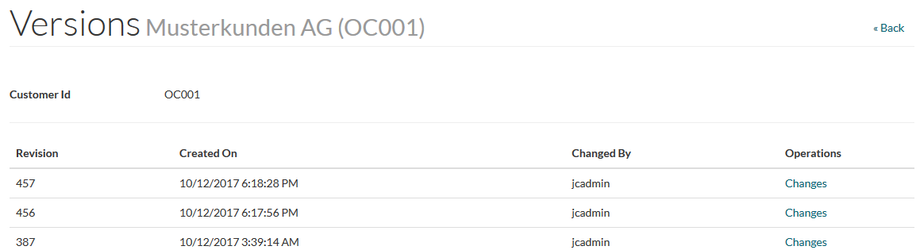
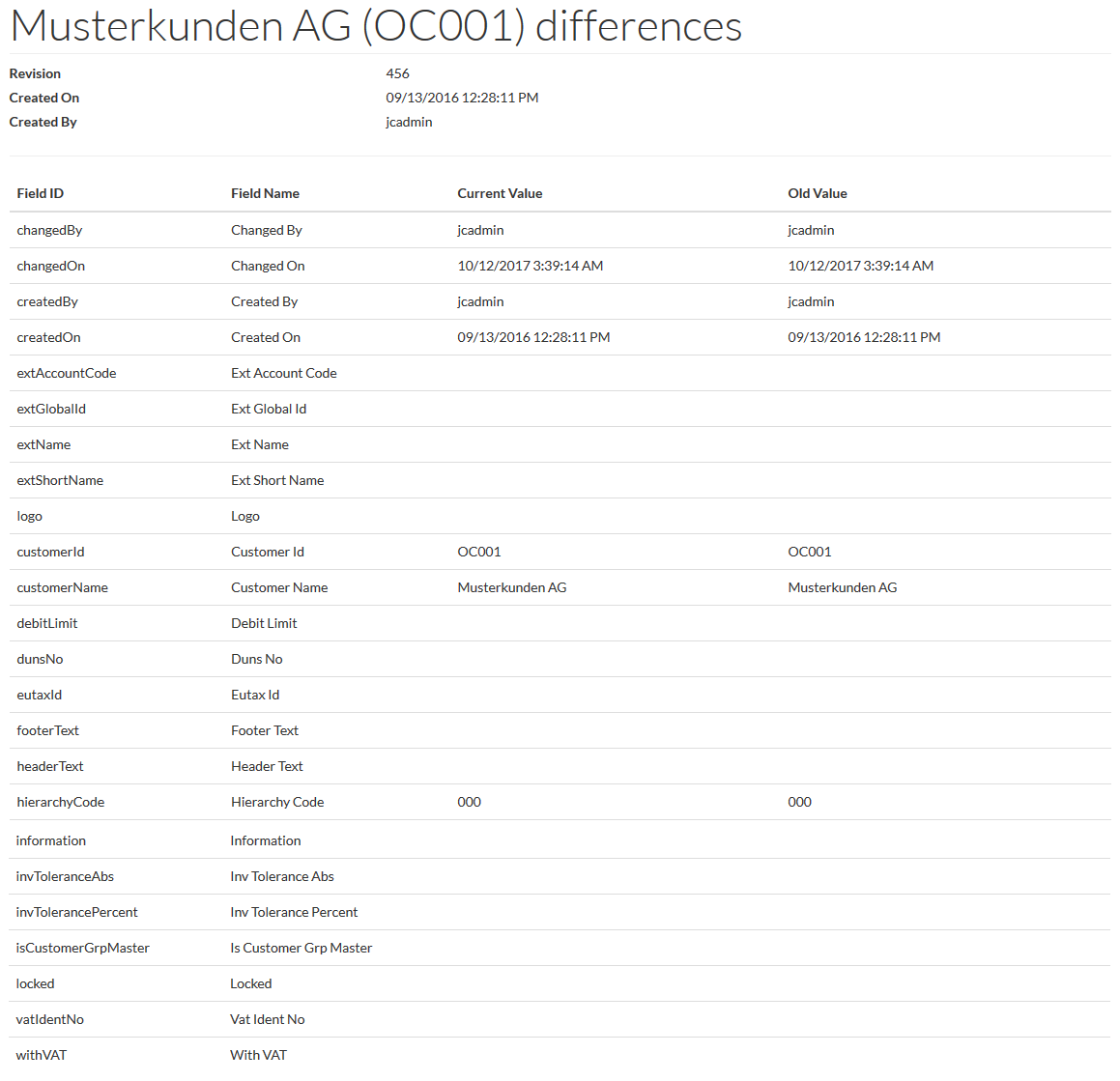
Click the Changes link to see the revision details: