
Contents
Overview
Find the general overview of the application and the user documentation on the User Manual page.
The main and user menus are available throughout the application on top of the screen.
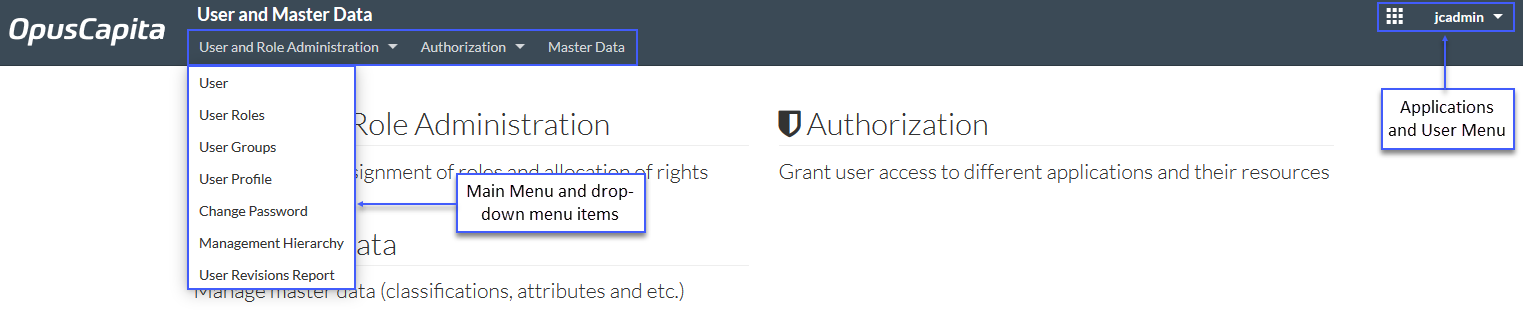
Clicking the OpusCapita logo brings you to the start page from any other page of the application.
Main Menu
The main menu provides access to the main application's functionalities and includes two items with their relevant drop-down menus:
Selecting the relevant option from the menu brings you to the relevant application's page.
Applications Menu
Click
 to open the applications menu. Use this menu to access other available applications.
User Menu and Settings
Use the
 icon displayed next to the user's first name in the upper-right corner of the screen to show a drop-down list of user menu items.
If the user has no first name specified in user details, the login name is displayed.

The user menu shows the details of the current user (First and Last Names and login) and the user's profile picture. User profile picture can be managed on the Picture tab of the User Editor or in User Profile.
The following menu items are available in the user menu:
System Administration
Select System Administration to go to the System Administration page. Use this page to get access to system administration, database, system reports and files options.
See:
Report Bug
Select Report Bug option from the User Menu drop-down list to create a standard error report in case of encountering an error.
Find more details on reporting procedure on the Report Bug page.
Help
Clicking Help on any page of the application opens a relevant page of the User Manual.
Logout
Select Logout option from the User Menu drop-down list to log out from the application and go to the Login page.
Current Assignment
See the supplier or customer the user is currently assigned to by the Current Assignment.
To change the assignment, click the link by the Current Assignment (Supplier or Customer Name / None).
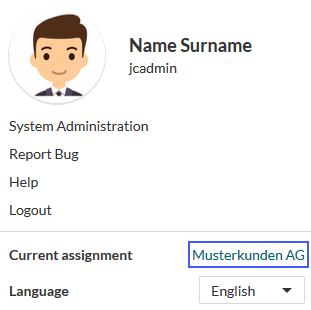
Find more information on how to change the assignment on the Change Assignment page.
Language
Select the UI language from the Language drop-down list.